
Interface
Open Agent Builder → Settings → Interface. This tab controls how chat looks and how assistants address people. Site knowledge and standing guidance live under Knowledge; per-assistant personality is under Knowledge → Instructions.
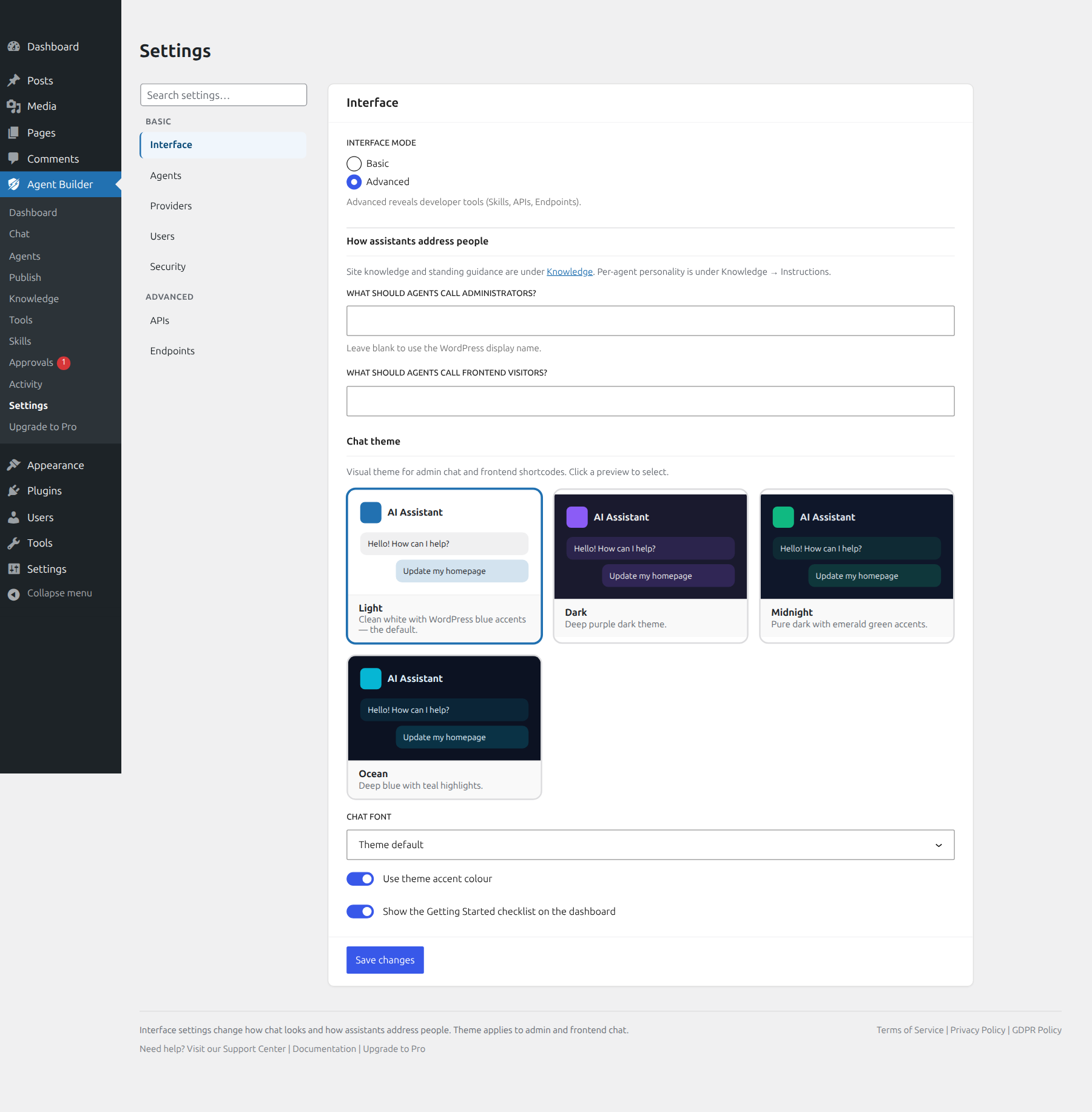
Interface mode
- Basic — everyday settings only (Interface, Agents, Providers, Users, Security).
- Advanced — also shows developer tools: Skills, APIs, and Endpoints.
How assistants address people
Optional labels for administrators and frontend visitors. Leave blank to use each person’s WordPress display name.
Chat theme
Pick a visual theme with live preview cards. Applies to admin chat and frontend shortcodes.
- Light (default on new installs) — clean white with WordPress blue accents.
- Dark — deep purple dark theme.
- Midnight — pure dark with emerald accents.
- Ocean — deep blue with teal highlights.
Also set Chat font, whether to use the theme accent colour, and whether the dashboard shows the Getting Started checklist (toggle at the bottom of this tab).
Chat capabilities (audio, vision, white-label) are on the Agents tab — not Interface.
More detail: Chat styles and themes.
Agents
Site-wide chat features, compact provider/model overrides for active assistants, and the emergency stop. Set the site default provider on the Providers tab; theme is under Interface.

Chat features
- Audio input — microphone / browser speech recognition.
- Text-to-speech — read responses aloud (may use prepaid credits).
- Vision / image input — attach images when the model supports vision.
- White-label branding — hide “Powered by Agent Builder” (Pro).
Active agent overrides
Each row starts on the site default provider and model. Change only assistants that need a different setup. Dropdowns list connected providers only.
Disable All Agents
Emergency stop: deactivates agents, cancels jobs, and disconnects providers.
Providers
Connect AI providers and choose which connected provider is the site default. Only providers with a green status (connected) can be set as default.

- Use Edit to add or update API keys and models.
- Click Set Default on a connected row (green badge shows the current default).
- Built-in options include Agentic AI, OpenAI, Anthropic, Google Gemini, xAI, Mistral, Meta Llama, Cohere, DeepSeek, Kimi, Ollama, and custom OpenAI-compatible endpoints.
Full guide: Manage LLM providers.
Users
Role matrices for plugin administration and AI agent access, plus daily query/token quotas. Hover the ? next to each permission for a short explanation. Administrators always retain full access and unlimited usage.

- Plugin Administration — who can open dashboard, agents, tools, audit log, settings, and run tasks.
- AI Agents — frontend chat, admin bar chat, view installed agents, premium agents; daily queries/tokens per role and for visitors.
Request rate limits (per-minute throttle) live on Settings → Security, not Users.
Full guide: User roles and privileges.
Security
Default agent mode, message scanning, chat consent, retention, and request rate limits.

- Default agent mode — Supervised (approvals for write actions), Autonomous, or Disabled.
- Message scanning — filter prompt injection and known attack patterns.
- Require chat consent — optional notice before chat starts.
- Conversation / audit log retention — days to keep local history (default 30).
- Request rate limits — authenticated and anonymous requests per minute (moved here from Users).
High-risk tool calls still follow Approvals. Deep guide: Important security settings.
APIs
Advanced only (Interface mode = Advanced). Third-party keys used by specific tools — for example Google PageSpeed Insights for SEO tooling. Everyday LLM keys belong on the Providers tab.

See also Connecting an AI provider.
Endpoints
Advanced only. REST and integration endpoints for custom clients and automations. Prefer connected providers on the Providers tab for day-to-day chat.

License
When Pro is installed, enter your license key (format AGNT-XXXX-XXXX-XXXX-XXXX) to unlock marketplace, Vector Store, white-label, channels, and priority support. Free Agent Builder does not require a key.
Details: Licensing and pricing.
Instructions and Memory are under Knowledge (not Settings). MCP lives under Connectors when Pro is available.