Agent Builder → Publish is the unified control panel for all the ways an assistant can be deployed beyond the admin chat interface. It has four tabs: Shortcodes, Gutenberg Blocks, Scheduled Tasks, and Event Listeners.
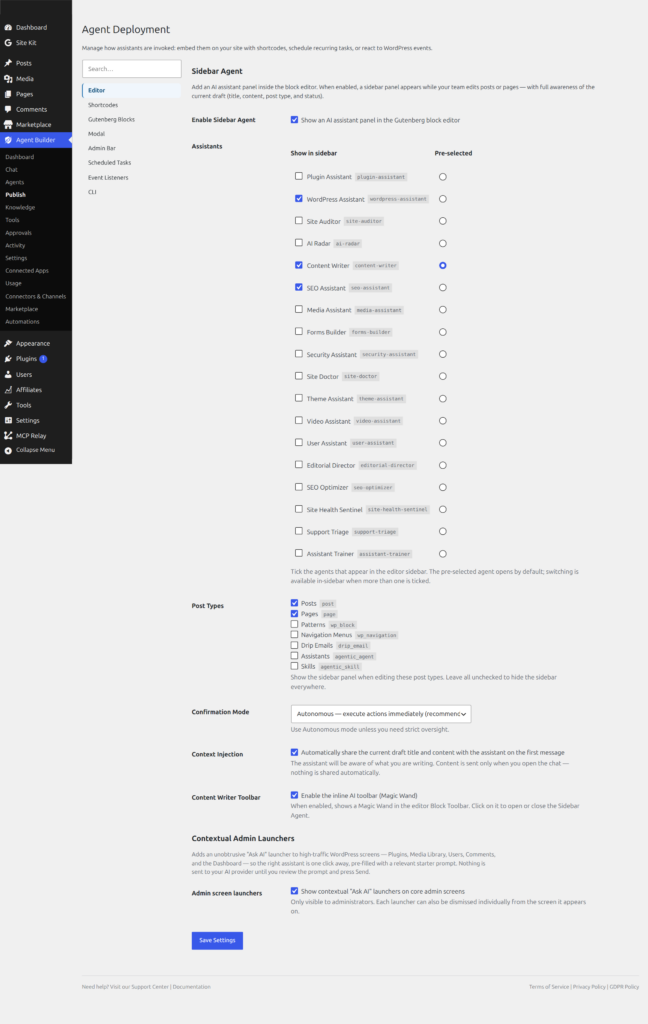
Shortcodes Tab
Shortcodes let you embed a chat interface on any page, post, or widget area on your site. The chat uses the global theme and feature settings configured in Chat Styles & Themes.
Creating a Shortcode
Use the form at the bottom of the tab to create a new shortcode deployment. Required fields:
- Label — a descriptive name shown in the deployments table (for example “Homepage Chat”)
- Agent — which assistant handles this chat window
Optional fields:
- Style — how the chat window is rendered (inline by default)
- Height — CSS height of the chat window (default:
500px) - Placeholder — hint text shown in the empty message input
- Show header — toggle the assistant name and icon bar at the top of the widget
After saving, a shortcode is generated automatically. Copy it and paste it into any page content:
✍️
Content Writer
Managing Deployments
The Active Shortcode Deployments table lists all existing deployments. Deployments that reference a deleted assistant are removed automatically. Click Remove to delete a deployment — this does not affect the assistant itself.
Scheduled Tasks Tab
This tab lists all scheduled tasks declared by active assistants. Tasks are registered automatically when you activate an assistant that defines them.
The table shows:
- Agent — the assistant that owns this task
- Task — the task name and optional description
- Schedule — frequency (hourly, daily, weekly, or a custom interval)
- Mode — 🤖 AI (the task runs a prompt through the LLM with full tool access) or ⚙️ Direct (the task runs a pre-written function directly without sending a request to the AI provider)
- Status — Active (scheduled in WP-Cron) or Not Scheduled
- Next Run — the exact date and time WP-Cron will fire the task
Every execution is logged in the Activity with start time, mode, duration, and outcome. Deactivating an assistant automatically cancels its scheduled tasks.
Event Listeners Tab
Event listeners hook into WordPress actions so an assistant can react to things happening on your site without you doing anything manually.
The table shows:
- Agent — the assistant that owns this listener
- Listener — the listener name and optional description
- WordPress Hook — the action that triggers the listener (for example
save_post,wp_login,user_register) - Priority — hook priority (default: 10)
- Mode — 🤖 AI (Async) queues an LLM task in the background so the triggering request is not slowed down; ⚙️ Direct runs a pre-written function immediately
- Status — always Active if the assistant is activated
Listeners are bound when an assistant is activated and removed when it is deactivated. When running in AI mode, the relevant information — such as the post that was just saved or the user who just logged in — is automatically included in the message sent to the AI assistant.