Documentation / Global Chat Settings

Global Chat Settings

Updated May 6, 2026

Settings Global tab

Overview

The Global tab in Agent Builder → Settings → Global controls the default appearance and features available in the chat interface across all agents on your site. Most settings can be overridden per agent in the Agents tab.

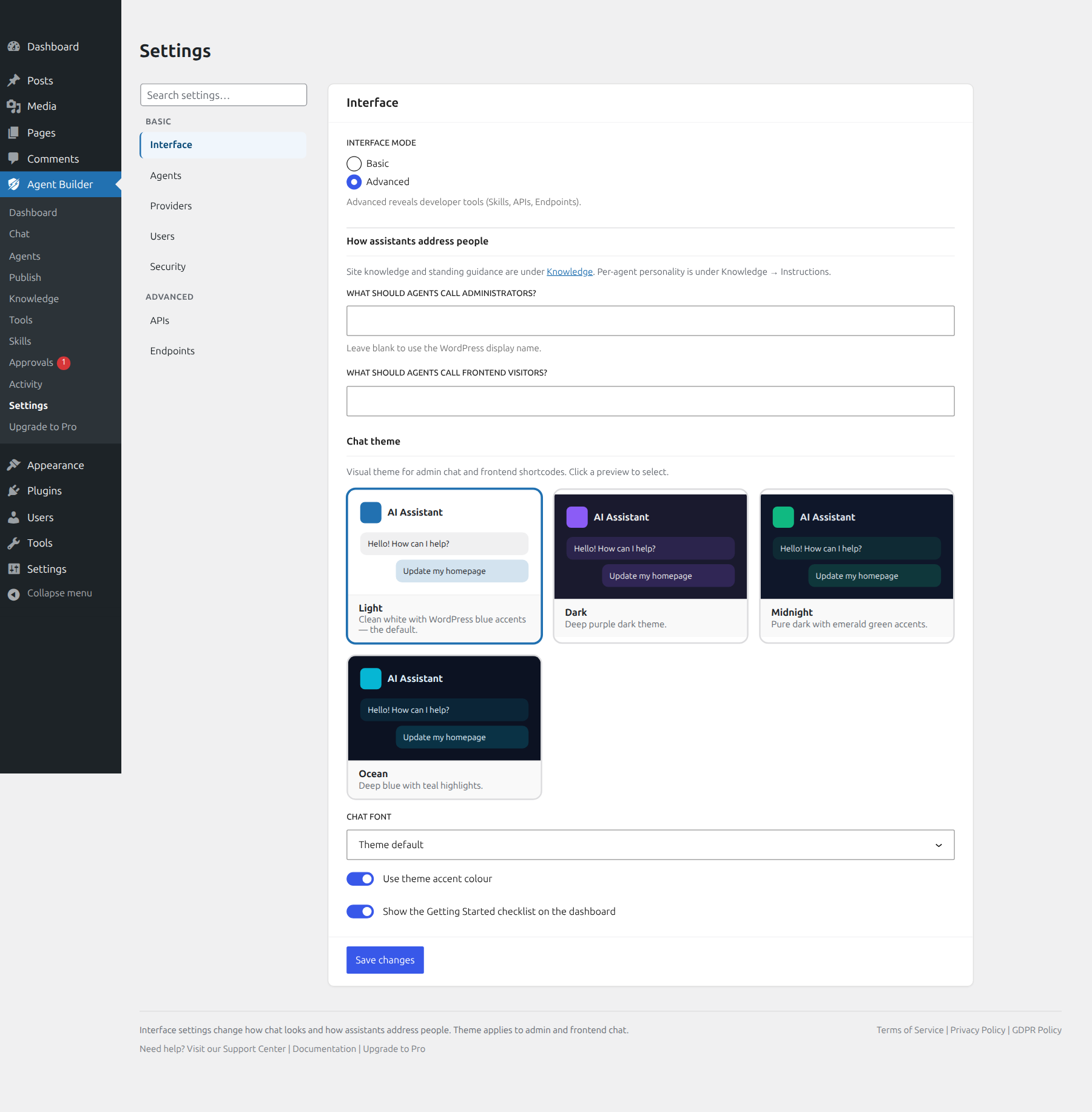
Chat Theme

Choose a visual theme for the agent chat interface. The theme applies to both the admin chat page and any frontend shortcode or block deployment.

  • Dark — deep purple dark theme (default)
  • Light — clean white with WordPress blue accents
  • Midnight — pure dark with emerald green accents
  • Ocean — deep blue with teal highlights

Chat Features

These toggles control which features are available to users in every chat session. Each can be overridden on a per-agent basis from the Agents tab.

Voice Input

Shows a microphone button in the chat input area. Users can click it to send messages by speaking. Uses the browser’s built-in speech recognition — no additional API key required. Supported in Chrome and most Chromium-based browsers.

Text-to-Speech

Adds a speaker button to each assistant response. Clicking it plays the response as audio using neural TTS voices. Requires prepaid credits — usage is deducted from your account balance.

Vision

Shows a paperclip button in the chat input area, allowing users to attach images. The assistant will analyse the image as part of its response. Requires a vision-capable LLM model to be configured.

Costs

Displays token usage and estimated cost in the chat footer after each message. Useful for monitoring credit consumption during development or for transparency with power users.

Response Cache

When enabled, identical queries return a cached response instead of making a new LLM call. Caching saves tokens, reduces cost, and improves response time for repeated questions.

Cache TTL

Controls how long a cached response is kept before it expires. Choose from 15 minutes, 30 minutes, 1 hour (recommended), 2 hours, 6 hours, or 24 hours.

Clear Cache

Tick this box and save to immediately clear all cached responses. The current cache entry count and cache status (Active or Disabled) are shown alongside the option.

Branding

By default, a small Powered by Agent Builder credit line appears in the chat footer. Tick Hide Branding to remove it. This option is available on all paid plans.


Frequently Asked Questions

Can I set a different theme for individual agents?

The Chat Theme set in Global applies to all agents by default. Per-agent theme overrides can be set from the Agents tab — select an agent from the dropdown, then choose a different theme. The agent-level setting takes precedence over the global one. This is useful if you want a dark theme for internal admin assistants but a light theme for a public-facing customer support bot embedded on your storefront.

How does response caching work — will users ever see outdated answers?

When response caching is enabled, identical user messages return the cached AI response instead of making a new API call. “Identical” means the full message text must match exactly — including capitalisation and punctuation. The cache is keyed per agent, so the same question asked of two different agents returns two different cached responses. The TTL setting controls how long entries are kept: at 1 hour (the default), a cached response is returned for up to 60 minutes after the first time that exact message was sent. After it expires, the next request goes to the AI provider and refreshes the cache. Caching is most valuable for public-facing agents handling repetitive FAQ questions. For internal admin agents handling unique one-off tasks, you may want to disable caching.

Does Text-to-Speech require a separate API key?

Text-to-Speech uses Agent Builder’s own credit system, not an external API key you configure. Usage is deducted from your account’s prepaid credit balance. The feature uses neural TTS voices — not the browser’s built-in speech synthesis — which produces more natural-sounding audio than the native browser alternative. You can monitor your credit balance and TTS usage from the Agent Builder → Dashboard. Voice Input (the microphone button for speaking your messages) is different — it uses the browser’s built-in speech recognition and requires no credits or API key.

What does the Costs toggle actually show?

When the Costs toggle is enabled, each AI response in the chat includes a small footer line showing the token count for that exchange (prompt tokens + completion tokens) and an estimated cost in USD based on the current pricing for your configured model. This is useful during development to understand how much a particular workflow costs before scaling it up, and for power users who want to monitor their spending in real time. The figures are estimates — actual billing comes from your AI provider’s dashboard. For a full usage breakdown by agent, see Agent Builder → LLM Costs.

How do I remove the “Powered by Agent Builder” branding?

Tick the Hide Branding option in the Branding section and save. This removes the “Powered by Agent Builder” credit line from the chat footer across all agents on your site. This option is available on all paid plans (Personal and Agency). On the free plan, the branding line remains in place. If you are building a white-label product for a client, the Agency license includes branding removal across all 25 activation slots — see Licensing and Pricing for plan details.


Related Articles