
Agent Builder → Approvals is where assistants wait for your OK before making important changes. You don’t need to understand every tool — choose a simple safety preference, optionally get email alerts, and approve or reject each request in plain language.
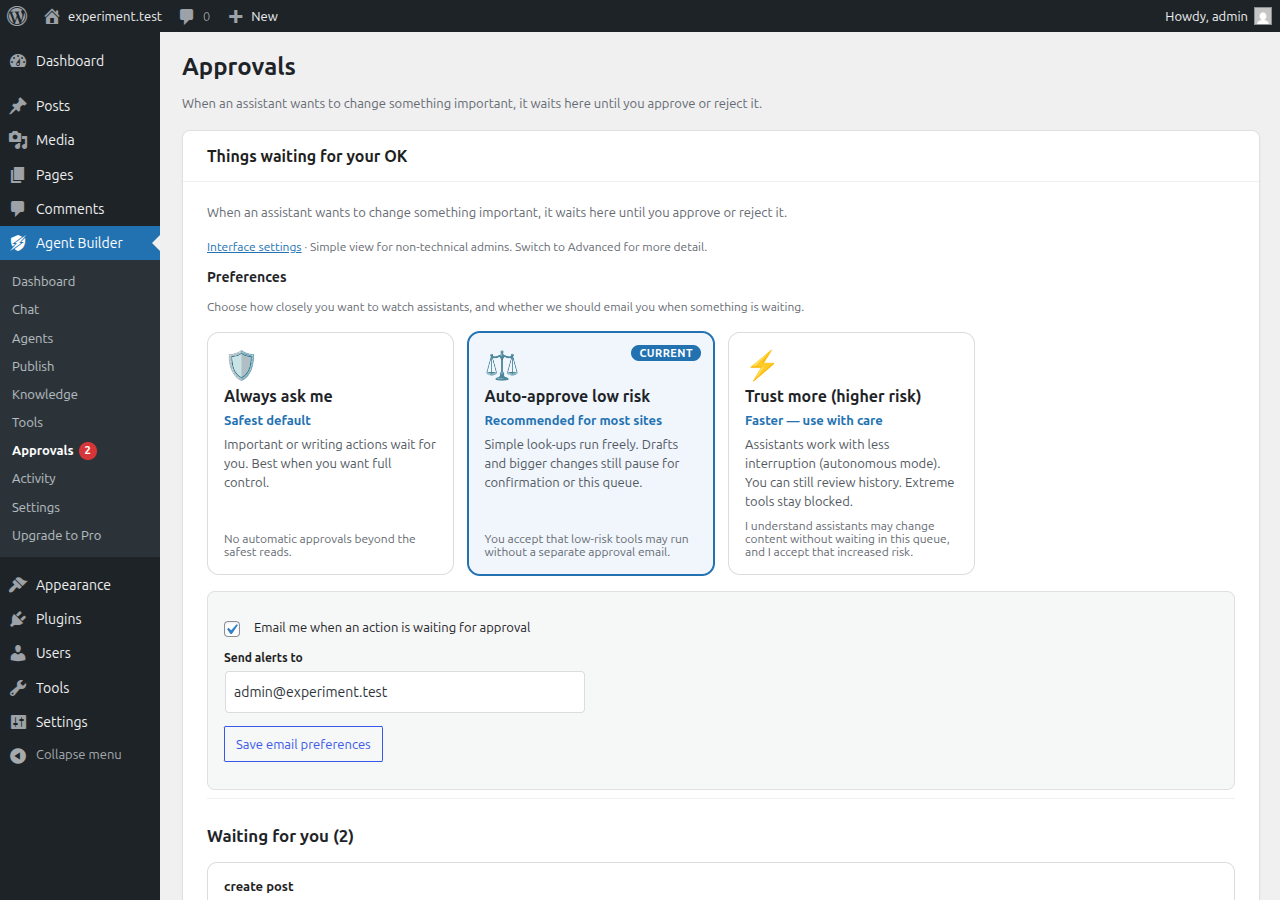
Preferences (for non-technical admins)
At the top of the page, pick how closely you want to watch assistants. These cards are designed for site owners, not developers:
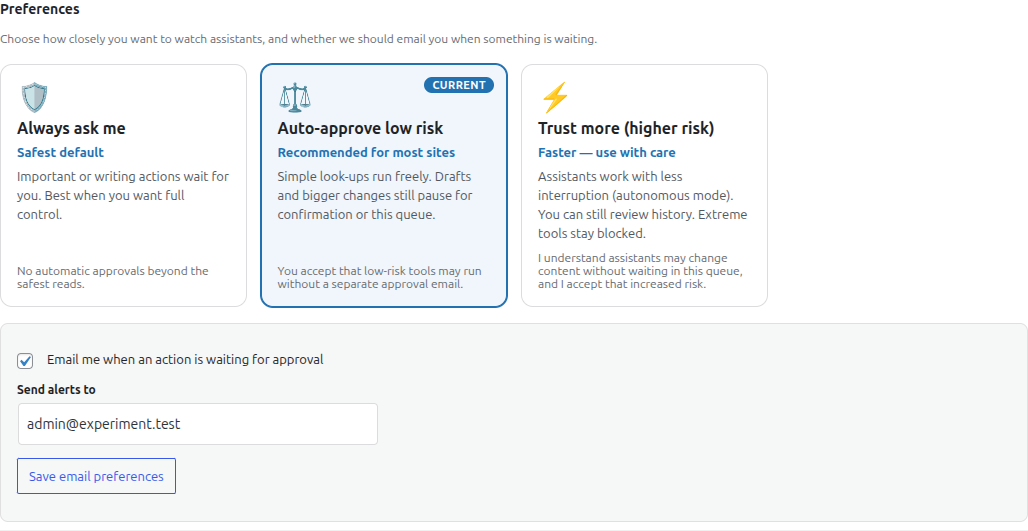
- Always ask me (safest) — Important or writing actions wait for you. Best when you want full control.
- Auto-approve low risk (recommended for most sites) — Simple look-ups can run freely. Drafts and bigger changes still pause for confirmation or this queue.
- Trust more (higher risk) — Faster autonomous-style operation with less interruption. You must tick a checkbox accepting the increased risk. Extreme tools stay blocked.
These preferences update agent mode and an auto-approve risk ceiling behind the scenes. You can change them any time. Link to Interface settings is on the page if you want the Advanced layout for more technical detail.
Email me when something is waiting
Enable Email me when an action is waiting for approval and set the address (defaults to your WordPress admin email). When an assistant queues a high-risk action, Agent Builder sends a short alert with:
- What the assistant wants to do
- Which assistant requested it
- Risk level
- A direct link back to Approvals
Emails are rate-limited (about one every five minutes) so a busy assistant does not flood your inbox. Turn them off any time under Preferences. Alerts never include passwords or full site dumps.
Waiting for you — approve or reject
Each waiting item is a clear card, not a developer log dump:
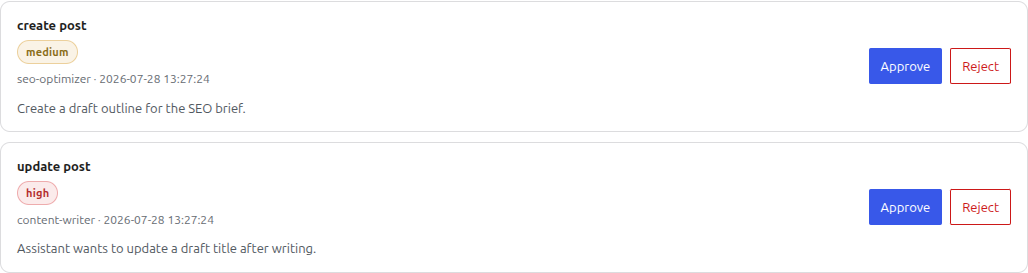
- Action — plain-language name of what would happen
- Risk badge — how serious the change is
- Assistant & time — who asked and when
- Summary — short reason or target (for example a post title)
- Approve — allow the action to proceed
- Reject — do not run it
Either way, the decision is recorded in the Activity / audit log.
When the list is empty
If nothing is waiting, you’ll see that you’re all caught up. That’s normal. Items only appear when an assistant needs permission for a bigger change (and, if you enabled it, you’ll get an email).
How this fits risk & tools

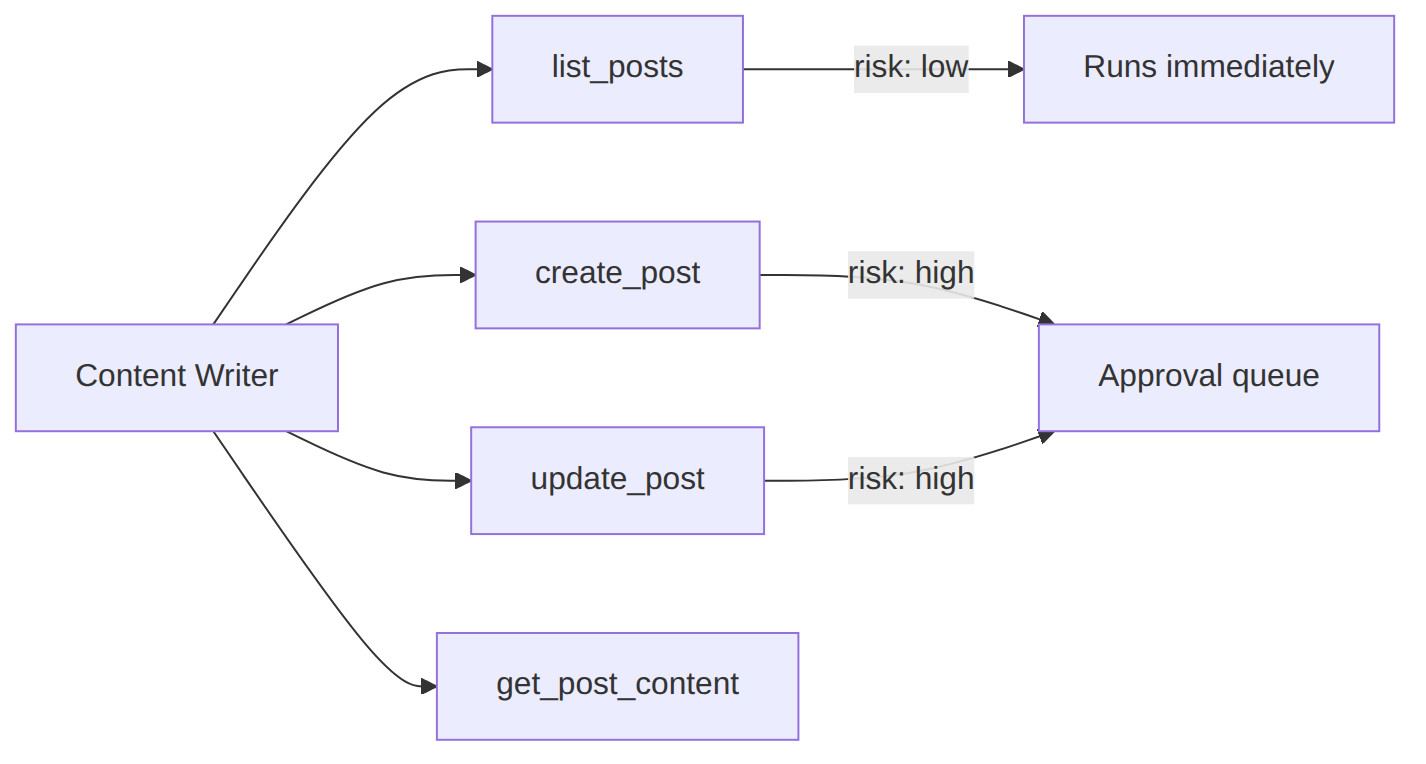
Related: Agent Tools (what assistants may use) and Permissions and Safety. On Tools in Basic Interface mode you can also pick a simple ability profile (browse / drafts / manage site) that turns tools on or off by risk.
Agent mode (technical detail)
Behind the comfort cards, Agent Builder still uses an operating mode:
- Supervised (default with “Always ask me” / “Auto-approve low risk”) — higher-risk work uses confirmation and this queue.
- Autonomous (“Trust more”) — fewer interruptions; queue stays quieter. Only enable if you accept the risk.
- Disabled — assistants cannot make those changes (configure under Settings if needed).
Your Approvals preference sets mode and an auto-approve risk ceiling (never extreme). Extreme tools remain blocked.
Examples of actions that may wait here
Depending on tools and risk, the queue can include things like:
- Updating or publishing posts
- Writing or changing files under your site (with backups where applicable under
wp-content/agentic-backups/) - Changing certain options, transients, or post meta
- Other high-risk tools your site has enabled
FAQ
Do I need to review every small action?
No. With Auto-approve low risk, simple safe look-ups can run without this screen. Bigger or write-heavy actions still wait.
Will email alerts spam me?
Alerts are rate-limited. If several items arrive quickly, you get one email with a note that more may be waiting.
Where is the old batch queue?
Advanced Interface mode still links to classic queue / backups views for batch approve and restore tools. Basic mode focuses on clear single-item decisions and preferences.
Related Articles
Stay in control of every important change
Agent Builder is free forever — approvals, tools, and assistants included.
Download Free Compare Free vs Pro