
Overview
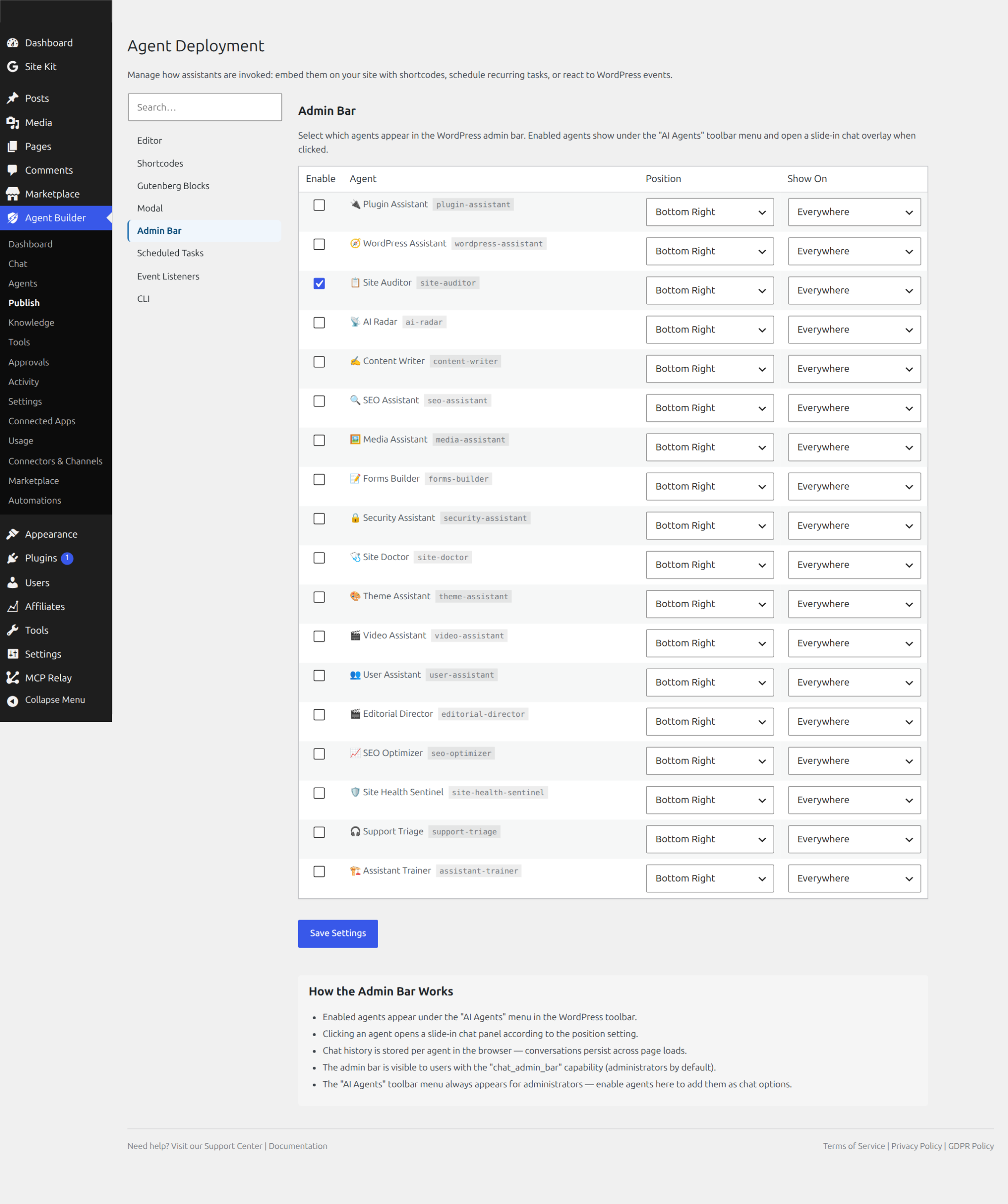
The Admin Bar tab in Agent Builder → Deploy → Admin Bar lets you add AI assistants to the WordPress admin toolbar. Enabled agents appear under the AI Agents toolbar menu and open a slide-in chat overlay when clicked — without leaving the current page.
Enabling Agents in the Admin Bar
The tab shows a table listing all active agents. For each agent you can:
- Enable — tick the checkbox to add the agent to the admin bar
- Position — choose where the chat overlay appears: Bottom Right or Bottom Left
- Show On — control where the agent is accessible: Everywhere, Admin Only, or Frontend Only
Save your changes to apply. The AI Agents menu in the admin bar updates immediately.
How the Admin Bar Works
- Enabled agents appear as items under the AI Agents menu in the WordPress toolbar
- Clicking an agent opens a slide-in chat panel at the configured position
- Chat history is stored per agent in the browser — conversations persist across page loads
- The admin bar is visible to users with the
chat_admin_barcapability (administrators by default) - The AI Agents toolbar menu always appears for administrators — enable agents here to populate it with chat options
Use Cases
The admin bar is ideal for agents your team uses frequently while working inside WordPress — content assistants, site audit agents, or support agents that editors and admins rely on throughout the day. Because the overlay opens without leaving the current page, it does not interrupt the workflow.
Setting Show On to Frontend Only lets you surface a support or sales agent to logged-in customers on the front end, while keeping it hidden from the WordPress admin area.
Frequently Asked Questions
Can I restrict which WordPress user roles see the admin bar agents?
Yes. The chat_admin_bar capability controls access. By default it is assigned to administrators only. To grant access to editors or authors, use a capabilities plugin (such as Members or User Role Editor) to assign chat_admin_bar to those roles. You can also restrict access on a per-agent basis using the permissions system in Settings → Agents.
Does the admin bar agent appear on the front end as well as the dashboard?
It depends on the Show On setting. Set to Everywhere, the agent appears in the admin bar on both the WordPress admin and the front end of your site (for logged-in users who have the show_admin_bar_front capability, which is enabled by default for administrators). Set to Admin Only, it is hidden when browsing the front end. Frontend Only hides it in the admin dashboard and shows it only while browsing public-facing pages.
Can multiple agents be enabled in the admin bar at the same time?
Yes. All active agents can be enabled in the admin bar simultaneously. They each appear as separate menu items under the AI Agents toolbar menu. There is no practical limit to the number of agents you can add, but for usability, keeping it to 3–5 agents is recommended so the menu stays manageable.
Does the slide-in chat panel interrupt what I am doing?
No. The slide-in overlay is non-blocking — it opens alongside the current page without navigating away or reloading. You can continue editing a post in the block editor while the agent chat panel is open on the right side. Closing the panel returns focus to what you were doing. Conversation history persists within the session so you can close and reopen the panel without losing context.
What is the difference between the admin bar deployment and the admin sidebar (Gutenberg panel)?
The admin bar overlay is accessible from any page in the WordPress admin (and optionally the front end) — it is always one click away from the toolbar at the top. The admin sidebar panel appears only inside the Gutenberg block editor and automatically receives the current draft’s content as context. Use the admin bar for general-purpose admin assistants; use the Gutenberg sidebar for writing and editing assistants that need awareness of the post you are working on.
Related Articles
- Admin UI (Gutenberg Sidebar) Deployment
- Agent Deployment Overview
- Chat Interface
- Permissions and Safety
Ready to put this to work?
Agent Builder is free forever — 8 AI agents, 261 tools, no API key needed.
Download Free Compare Free vs Pro