
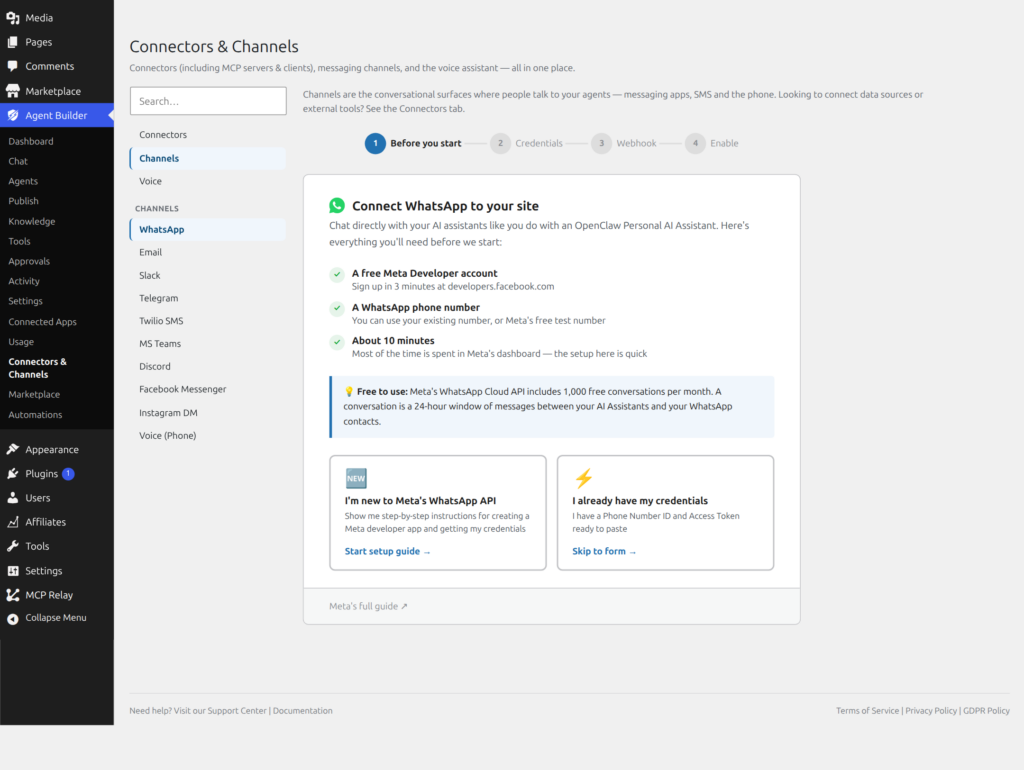
Channels connect your AI assistants to external communication platforms. Instead of only chatting through your WordPress site, agents can engage users on WhatsApp, Email, Slack, and more.
Available Channels
Two-way messaging via the Meta WhatsApp Cloud API. Your assistant responds to WhatsApp messages in real time, with full tool access.
Setup Guide →Process incoming emails and generate AI-powered responses. Connect via IMAP/SMTP or webhook integration.
Setup Guide →🗨️ Slack
Add your assistant to Slack channels and DMs. Ideal for internal helpdesks, automated reports, and team workflows.
Setup Guide →🌐 Web Chat
The default chat interface embedded in your WordPress site via shortcode or admin bar overlay.Assistant Trainer
🔌 MCP
Each agent becomes an MCP server. Connect Claude Desktop, VS Code, Cursor, or any MCP client to your WordPress tools.
MCP Docs →💻 WP-CLI
Run any agent from the command line: wp agent prompt <slug> "message". Perfect for cron jobs and scripts.
How Channels Work
Architecture
Channels sit between agents and the outside world. When a message arrives on a channel (e.g., a WhatsApp message), it’s routed to the assigned agent, which processes it using its tools and skills, then sends the response back through the same channel.
External Platform → Channel → Agent → Tools/Skills → Agent → Channel → External Platform
Channel-specific skills
Skills can be tagged for specific channels. A skill tagged “whatsapp” is only injected when the agent is responding through the WhatsApp channel. This lets you customize behavior per platform. Browse channel-specific skills.
Channel tools
Each channel registers its own tools (e.g., send_whatsapp_message, send_email). These appear in the Tools registry and can be individually enabled or disabled.
Request a Channel
Need a channel we don’t support yet?
Tell us which platform your agents should connect to. Popular requests get prioritized.
Frequently Asked Questions
Which channels are available on the free plan?
The Web Chat channel (embedded via shortcode or admin bar overlay) and WP-CLI are available on all plans including free. WhatsApp, Email, Slack, and MCP are premium channels that require a paid license. The built-in admin chat interface is always available regardless of plan. If you want to deploy a public chat widget on your site’s front end, that uses the Web Chat channel and works on the free plan — see Agent Deployment for setup instructions.
Can the same agent run on multiple channels simultaneously?
Yes. A single agent can be connected to WhatsApp, Email, Slack, and the web chat interface at the same time. Each channel can be configured independently — the agent’s core behaviour stays consistent, but channel-specific skills and tools are only active on their respective channel. For example, a send_whatsapp_message tool is only available when the agent processes a WhatsApp conversation, not when it runs via the web chat interface. This lets you customise the agent’s responses to feel native to each platform.
What is MCP and why would I use it?
MCP (Model Context Protocol) is an open standard that lets AI clients connect to external tools. With the MCP channel enabled, each of your agents becomes an MCP server — exposing your WordPress tools (post creation, media management, settings control, etc.) to any MCP-compatible client. This means you can connect Claude Desktop, VS Code with Copilot, Cursor, or any other MCP client to your WordPress site and interact with it using the AI assistant of your choice, without using the Agent Builder chat interface at all. It is designed for developers and power users who already work inside AI-native tools.
How does the Email channel work — does it monitor my inbox?
Yes — the Email channel connects to a mailbox via IMAP and polls for new messages on a configurable interval. When a new email arrives, Agent Builder routes it to the assigned agent, which reads the content, processes it using its tools, and sends a reply via SMTP. You configure which mailbox to monitor, the polling frequency, and which agent handles the messages. You can also use webhook integration instead of IMAP polling if your mail provider supports it. The agent can access your full WordPress tool set while composing replies — so it can look up orders, check customer records, or create tickets based on email content.
Can I use WP-CLI to automate agent tasks in a cron job?
Yes — that is the primary use case for the WP-CLI channel. The command is: wp agent prompt <agent-slug> "your message here". You can schedule this in your server’s crontab to run any agent on a fixed schedule, pipe in dynamic content (like a list of posts published today), or trigger agents from deployment scripts and CI pipelines. This is more reliable than WordPress’s built-in WP-Cron for time-sensitive automation because it fires exactly when your system cron triggers it, not when the next web request happens to arrive. See WP-CLI Commands for the full command reference.
Related Articles
Ready to put this to work?
Agent Builder is free forever — 8 AI agents, 261 tools, no API key needed.
Download Free Compare Free vs Pro