
How tools fit an agent
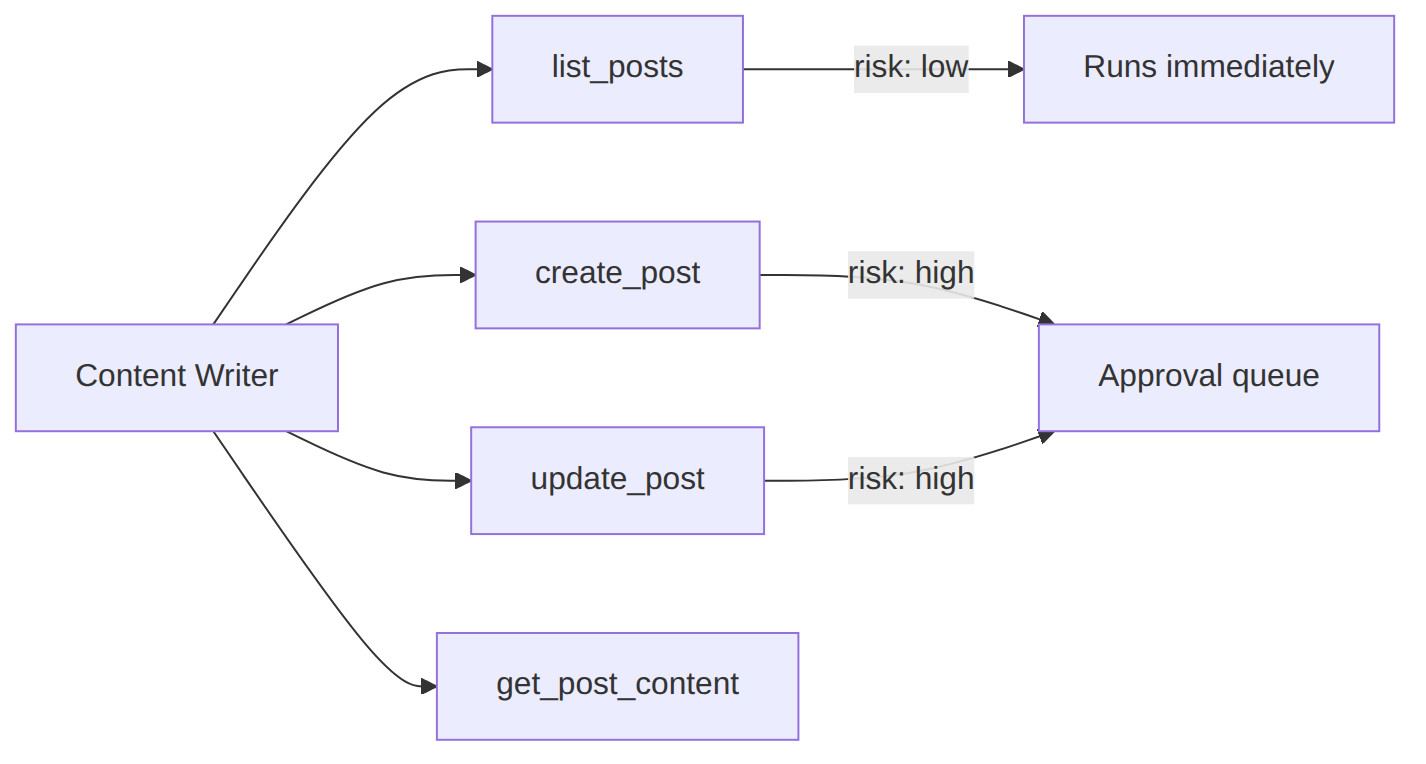
Tools are standalone capabilities agents reference by name. Agents do not own tools — they declare which tools they need. Risk metadata drives the approval queue.
Free vs Pro at a glance: the free plugin includes the full shipped tool library, enable/disable controls, per-agent assignment, risk levels, and approvals. Creating site-local tools in the admin UI (no PHP) is a Pro feature. Developers on free or Pro can still ship code tools via Tool_Base (see below).
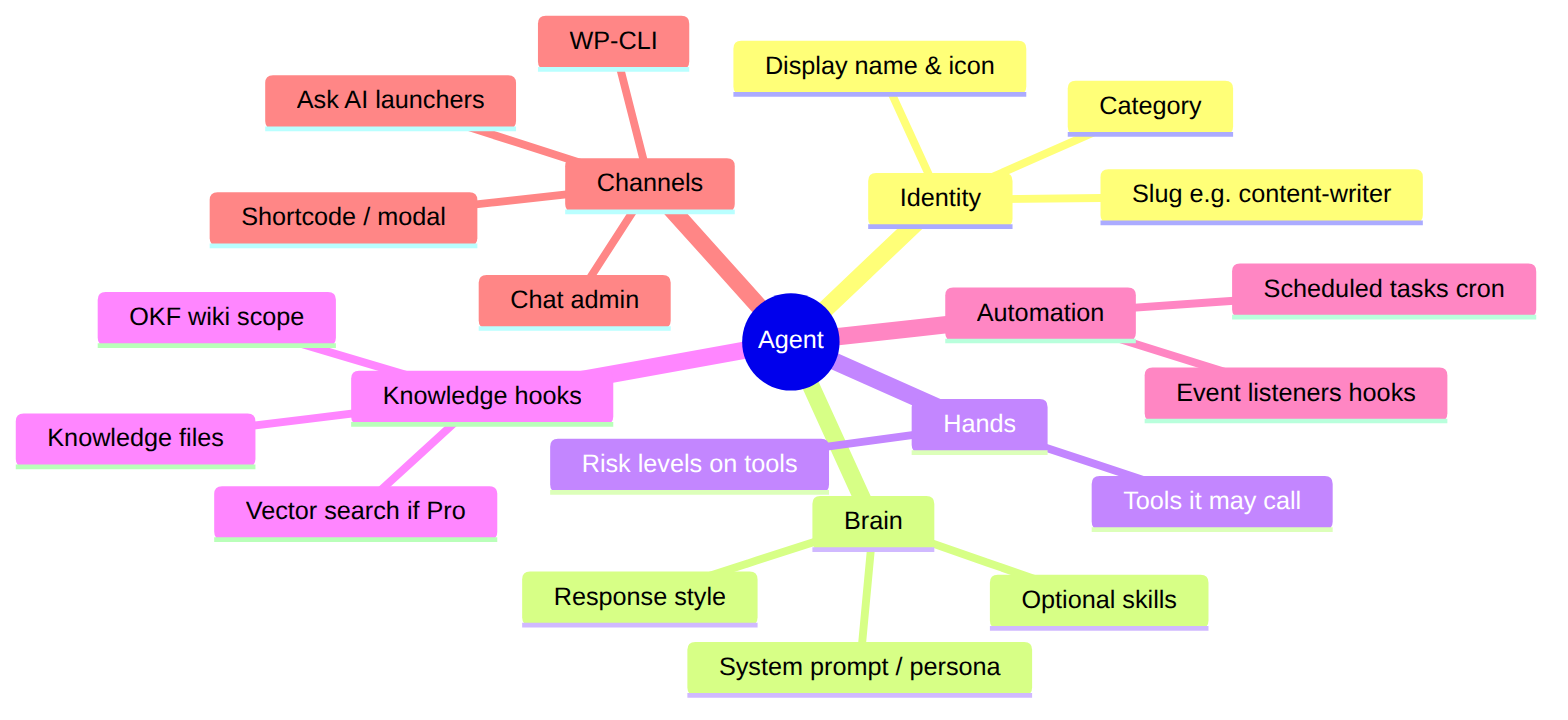
Tools are the actions your AI assistants can take — reading posts, querying the database, generating images, auditing SEO, and more. Agent Builder ships with 261 tools organized by category. Using those tools is free; building site-local tools in the admin UI requires Pro.
Tool Categories
Click a category to see its tools. Every tool listed here is live in the current version of Agent Builder.
How Tools Work
Safety by design
Every tool has a 5-tier risk level — from read-only (auto-approved) to extreme (disabled by default). Write operations pause for confirmation in supervised mode. You control which tools each assistant can access. The same risk and approval rules apply to core, agent-specific, and site-local tools.
Where tools come from
Three sources feed the shared tool pool. Agents only declare which names they may call — they never embed private copies of tools.
| Source | What it is | License |
|---|---|---|
| Core | Platform tools (content, database, WordPress, CLI helpers, and more) available whenever the plugin is active. | Free |
| Agent-specific | Tools contributed by a bundled or marketplace agent (for example SEO or security). Active only while that agent is enabled. | Free (marketplace agents may need a purchase) |
| Site-local (custom) | Tools you define for this site only: either a no-code admin builder, or developer PHP packages. | Admin builder: Pro · PHP Tool_Base: free & Pro |
Free vs Pro: creating tools
| Capability | Free Agent Builder | Agent Builder Pro |
|---|---|---|
| Use the shipped tool library (enable/disable, categories) | Yes | Yes |
| Assign tools per agent; risk levels & approvals | Yes | Yes |
| Suggest a tool for the product roadmap (form below) | Yes | Yes |
Developer: add tools in PHP via Tool_Base / tool packages |
Yes | Yes |
| Admin UI: Create / edit site-local tools (declarative handlers, schema, test run, attach to agents — no PHP) | No — Pro required | Pro Yes (rolling out) |
| Export / import site-local tool packs; advanced handlers (e.g. allowlisted HTTP / REST) | No | Pro |
Site-local tools never ship inside the public “261 tools” count — they live on your install. Free users who need a one-off capability today can use an existing tool, suggest it for a future release, or implement PHP (developer path).
For developers Free & Pro
Code tools extend Tool_Base with five methods: get_name(), get_description(), get_category(), get_parameters(), and execute(). Parameters use the OpenAI function-calling JSON schema format. Register them under the tool library (or a custom directory on the agentic_tool_dirs filter). See Building a Custom Agent and MCP Integration for packaging and external exposure. This developer path does not require Pro.
Site-local tool builder Pro
Pro adds an admin experience (Agentic → Tools → Add tool) to configure site-local tools without writing PHP: identity, safe platform handlers, parameter schema for the LLM, risk level, which agents may use the tool, and a test run. Handlers are allowlisted (for example WordPress content operations or constrained HTTP) — not free-form shell or arbitrary SQL. Extreme-risk actions stay opt-in and approval-gated like every other tool.
Status: product direction for Pro; use this page as the source of truth for free vs Pro boundaries while the UI ships.
Suggest a Tool Free
Have an idea for a product tool?
This form proposes a tool for everyone in a future Agent Builder release — not a private tool on your site. For a tool that only your site needs without waiting on a release, use the Pro site-local builder (when available) or the free developer Tool_Base path. We review every product suggestion; if it fits the architecture, we will credit you when it ships.
Tool Categories Overview
Agent Builder ships with 261 tools organised into categories. Each category groups tools by the type of WordPress resource or action they work with. Here is what each category covers:
- Content — Read, create, update, and delete WordPress posts and pages. Generate post outlines, expand drafts, improve readability, create headings, and manage Gutenberg block content programmatically.
- SEO — Read and write Yoast SEO and Rank Math meta fields. Analyse keyword density, generate meta descriptions, check title lengths, audit internal links, and submit URLs to Google Search Console for indexing.
- Database — Execute read-only SQL queries against the WordPress database. Retrieve custom field values, query custom post types, and aggregate data across the site without writing PHP code.
- WordPress — Manage plugins and themes (list, activate, deactivate), read site options, check user accounts, query taxonomies, manage menus, and interact with core WordPress settings.
- Media — List and search the media library, read image metadata, generate alt text, rename files, move attachments between posts, and query images by size or type.
- Security — Check user login history, review failed authentication attempts, scan for common file permission issues, audit active plugins for known vulnerabilities, and verify WordPress core file integrity.
- Performance — Run PageSpeed Insights audits, check Core Web Vitals, measure Time to First Byte, identify slow database queries, and get optimisation recommendations.
- Forms — Read Contact Form 7, WPForms, and Gravity Forms submissions; list active forms; retrieve field configurations; and query submission counts by date range.
- Analytics — Query Google Analytics 4 data directly from the WordPress admin — page views, session counts, top pages, traffic sources, and user engagement metrics.
- WooCommerce — Read and write product data, manage inventory, query orders, check customer records, and generate product description drafts. Requires WooCommerce to be active.
- CLI — Run a curated subset of WP-CLI commands for tasks that are not covered by other tool categories. All CLI tools require explicit user confirmation before executing.
Risk Levels
Every tool in Agent Builder is assigned a risk level that controls how it is handled during execution:
- Read-only (Level 1) — Auto-approved. The tool reads data and returns it. No changes are made to the site. Examples: get_post, list_plugins, query_database.
- Low write (Level 2) — Auto-approved in autonomous mode, confirmed in supervised mode. Adds or modifies non-critical data. Examples: update_post_meta, add_tag.
- Medium write (Level 3) — Requires user confirmation in both modes. Modifies published content or settings. Examples: update_post, change_site_option.
- High write (Level 4) — Always requires confirmation. Deletes content or changes security-sensitive settings. Examples: delete_post, change_user_role.
- Extreme (Level 5) — Disabled by default. Requires explicit opt-in in settings. Examples: run_arbitrary_sql, execute_shell_command.
Frequently Asked Questions
Can I disable specific tools for a particular agent?
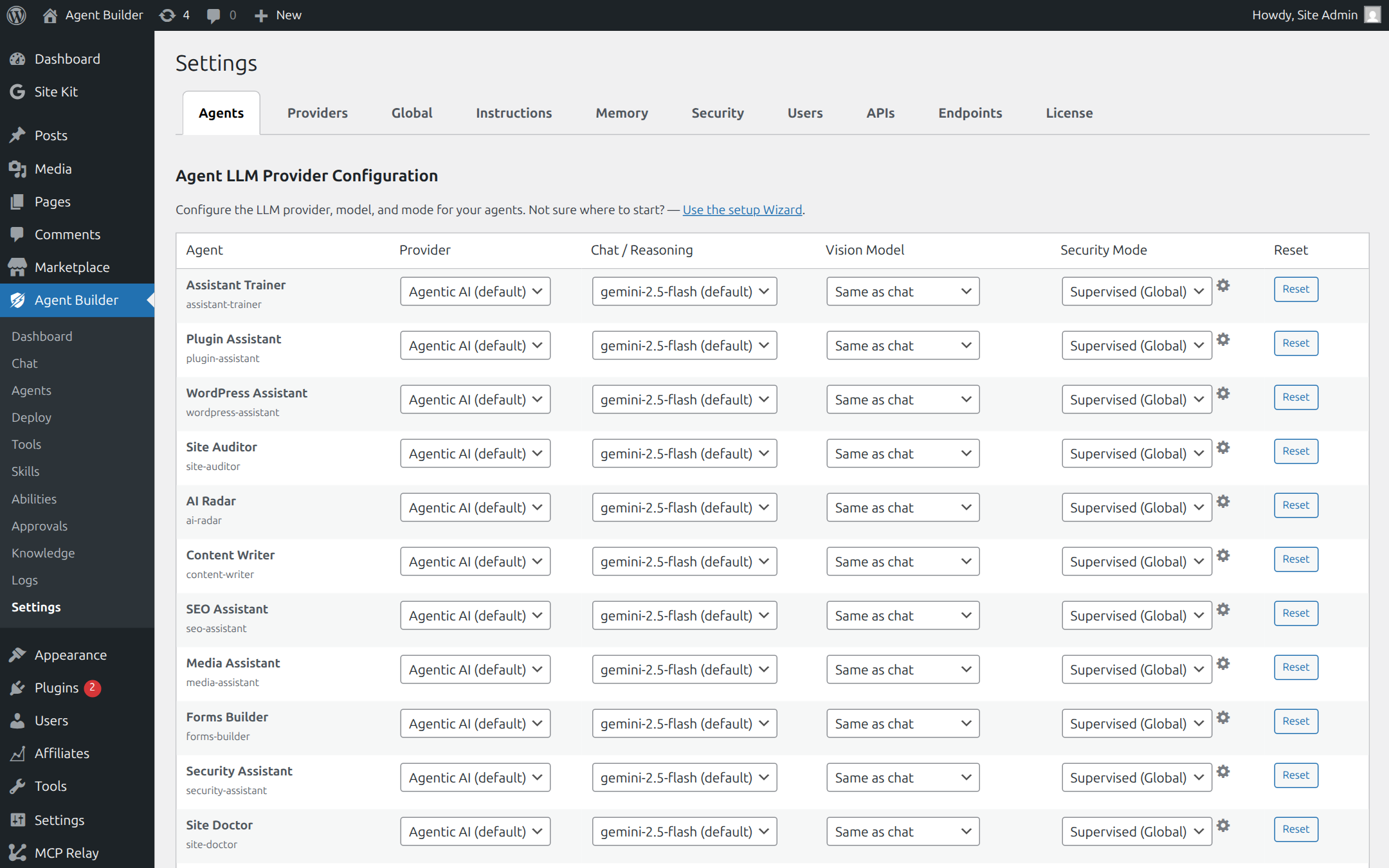
Yes. In Settings → Agents → Chat Feature Overrides, you can toggle individual tool categories on or off per agent. You can also set the confirmation mode per agent — so one agent always prompts before writes while another runs autonomously. This lets you give a public-facing agent read-only access while giving your admin agent full write access.
Do tools run on my server or on Agentic’s infrastructure?
Tools execute on your WordPress server. When the LLM decides to call a tool, the call is sent back to your WordPress installation via its REST API, which then executes the corresponding PHP function. Agentic’s servers are never in the execution path for tool calls — only the initial AI inference request routes through the LLM provider. This means tools have access to your full WordPress environment including the database, file system, and installed plugins.
Can tools access files outside the WordPress directory?
File system tools are restricted to paths within the WordPress root and the wp-content directory. Tools cannot read or write to parent directories, system files, or paths outside the WordPress installation. This restriction is enforced at the tool level and cannot be overridden by prompt injection.
How do I build a custom tool?
There are three paths — pick based on license and audience:
- Use what ships (Free): enable tools under Agentic → Tools and assign them to agents. No custom code required.
- Site-local builder (Pro required): create declarative tools for this site only in the admin UI (handlers, schema, risk, agent attach). No PHP. Not available on free alone.
- Developer PHP (Free & Pro): extend
Tool_Basewithget_name(),get_description(),get_category(),get_parameters(), andexecute(). Parameters use OpenAI function-calling JSON schema. See Building a Custom Agent.
Is creating tools in the admin free?
No. The no-code Create tool experience is Pro-only. Free includes using the full shipped library, risk/approvals, suggesting product tools, and developer-authored Tool_Base packages. See Free vs Pro pricing.
What is the difference between core, agent-specific, and site-local tools?
Core tools are available whenever Agent Builder is active. Agent-specific tools are contributed by a bundled or marketplace agent and only join the pool while that agent is enabled (disabling the agent removes its tools). Site-local tools are defined on your install (Pro admin builder or developer PHP); they stay available according to how you attach them to agents and are not part of the public “ships with N tools” count.
Related Articles
Ready to put this to work?
Agent Builder is free forever — 8 AI agents, 261 tools, no API key needed.
Download Free Compare Free vs Pro