
Impact on Page Load Times
Agent Builder has zero impact on front-end page load times for your visitors. The plugin loads its assets only in the WordPress admin dashboard and on pages where you have specifically embedded a chat widget via shortcode.
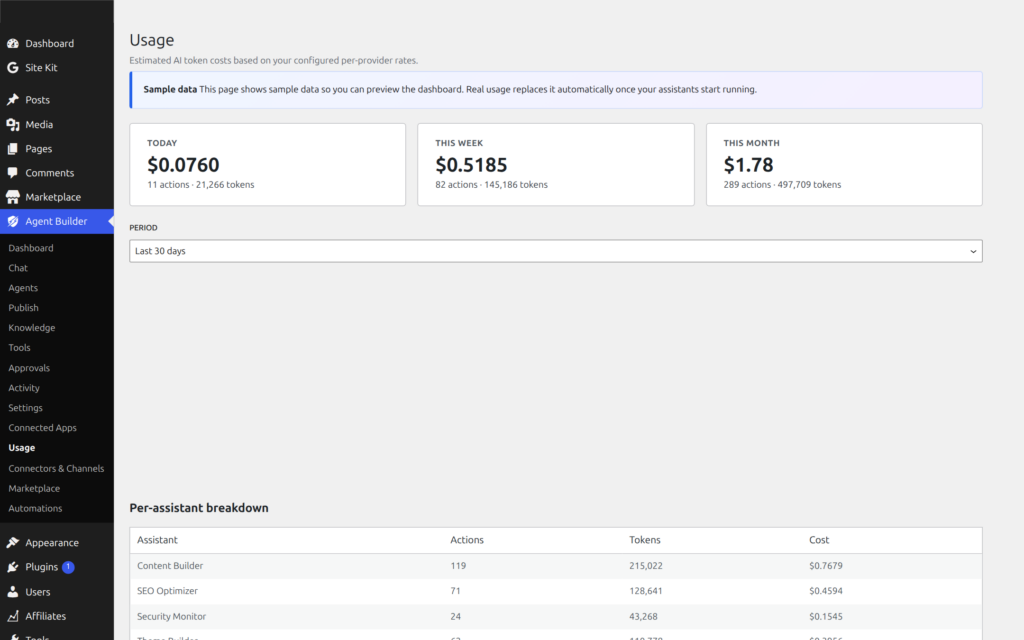
The AI processing happens server-side through API calls to your AI provider. These calls only occur when you (or a scheduled task) actively interacts with an assistant.
Server Resource Usage
- Memory: Minimal — the plugin itself uses very little PHP memory. AI API calls are handled as standard HTTP requests.
- CPU: Negligible for normal usage. The heavy processing happens on the AI provider’s servers, not yours.
- Database: Audit logs are stored as custom post types. On an active site, this might add a few hundred rows per month. Logs can be cleaned up periodically.
- Disk space: The plugin is under 5 MB. File backups (from assistant-modified files) may use additional space.
Hosting Requirements
Agent Builder runs well on standard WordPress hosting. Specific requirements:
- Shared hosting: Works fine for normal usage (a few conversations per day)
- Managed WordPress hosting (e.g., WP Engine, Kinsta): Ideal — reliable cron and good PHP performance
- VPS/Dedicated: Recommended for heavy usage with scheduled tasks and event automation
Scaling Considerations
- Concurrent users: Each chat session creates API calls to your AI provider. If multiple admins chat simultaneously, costs increase linearly.
- Scheduled tasks: Run sequentially through WordPress cron. They do not strain your server.
- Event automation: Async processing means events queue up and process one at a time — no server overload.
- Multisite: Each site in a multisite network has its own assistant configuration and API key.
Optimization Tips
- Use a server-level cron job instead of WP-Cron for more reliable scheduling
- Review and clean the audit log periodically (Agent Builder → Activity)
- Deactivate assistants you are not using to reduce background processing
- Set spending limits in your AI provider dashboard to control costs
Frequently Asked Questions
Will installing Agent Builder slow down my website for visitors?
No. Agent Builder loads no JavaScript, CSS, or PHP on your public-facing pages. Its assets are loaded exclusively in the WordPress admin dashboard and on pages where you have explicitly embedded a chat widget using the shortcode or Gutenberg block. Your homepage, blog, WooCommerce shop, and all other front-end pages are completely unaffected by having the plugin installed. There is no background polling, no front-end script injection, and no modification to your theme files unless you specifically deploy a chat widget.Assistant Trainer
How much does running scheduled tasks cost in server resources?
Very little. Scheduled tasks run through WordPress cron as standard HTTP requests to your AI provider’s API. The heavy processing happens on the AI provider’s servers — your server simply sends a request and waits for a response. CPU and memory usage during a scheduled task are comparable to running a WooCommerce order email — a brief PHP execution spike and then idle. Tasks run sequentially, not in parallel, so multiple scheduled tasks queue up rather than firing simultaneously and compounding load. On shared hosting, running up to 10–20 scheduled tasks per day is well within normal limits.
My hosting has a 30-second PHP timeout. Will long AI tasks fail?
This depends on the task. Simple tasks (generating a short post, checking settings, running a quick query) typically complete in 5–15 seconds. Complex multi-step tasks (auditing 50 posts, generating a full content plan, processing large files) can take 60–120 seconds. For tasks that risk hitting your host’s PHP timeout, two approaches help: (1) break the task into smaller sub-tasks in your agent’s instructions, or (2) switch to a managed WordPress host (WP Engine, Kinsta, Cloudways) that allows longer PHP execution times, or a VPS where you control the timeout setting. Scheduled tasks run via WP-CLI avoid web server timeouts entirely.
How much database storage do audit logs use?
Audit log entries are stored as WordPress custom post type records in your wp_posts and wp_postmeta tables. A typical conversation with 10 exchanges generates roughly 15–30 database rows. An active site where admins chat daily might accumulate a few hundred rows per week. For sites with heavy usage — many concurrent users, event automation firing frequently — logs can grow to tens of thousands of rows over several months. You can control this by setting a log retention period in Agent Builder → Settings, which auto-deletes entries older than a specified number of days. For very active sites, periodic manual cleanup from the Activity screen is also available.
Is Agent Builder compatible with WordPress multisite and caching plugins?
Yes to both. On multisite, each subsite has its own independent Agent Builder configuration, agent list, and API keys — there is no shared state between subsites unless you intentionally configure the same API key on multiple sites. For caching plugins (WP Rocket, W3 Total Cache, LiteSpeed Cache), Agent Builder’s admin pages are automatically excluded from page caching since they are behind the WordPress login wall. If you have a front-end chat widget, you may need to exclude that page from caching to ensure the shortcode renders correctly — consult your caching plugin’s exclusion settings to add the page URL.