
This guide covers how to safely remove Agent Builder from your WordPress site, what data the plugin leaves behind, and how to clean up completely if you want a fresh slate.
Before you remove the plugin
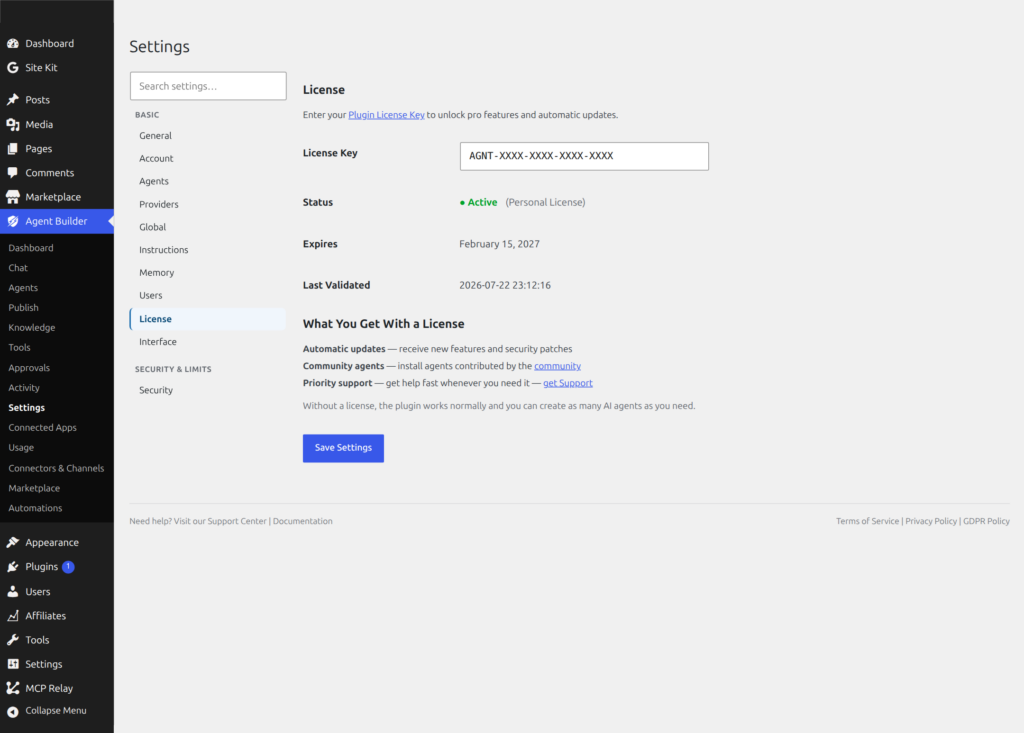
If you have an active license, deactivate it first so you can reuse it on another site. Go to Agent Builder → Settings → License, click Deactivate License, and confirm. This frees up your activation slot before the plugin is removed.
If you have any custom assistants you want to keep, export or back up the files in wp-content/agentic-agents/ before deleting the plugin — these are not removed automatically.
Deactivating vs. deleting
When you click Deactivate on the Plugins page, Agent Builder shows a short deactivation dialog before anything happens:
- Data retention choice — Keep my data (default) preserves everything: assistants, conversation history, audit log, API keys, and all database tables. Delete all plugin data permanently removes conversations, logs, API keys, agent settings, and every
agentic_*database table when the plugin is deleted. - Optional feedback — a one-click reason for leaving, which helps us improve. You can skip it.
After the dialog, WordPress gives you two ways to remove the plugin:
- Deactivate only — The plugin stops running but all of its data and files stay intact. Your assistants, conversation history, audit log entries, and settings are all preserved. You can reactivate the plugin at any time and pick up exactly where you left off.
- Deactivate and delete — Removes the plugin files. If you chose Delete all plugin data in the deactivation dialog, the uninstall routine also wipes the database data (see below). Custom assistants and backup files are never removed — you will need to delete those manually for a complete cleanup.
What is removed on deletion
If — and only if — you selected Delete all plugin data in the deactivation dialog, deleting the plugin via Plugins → Installed Plugins → Delete removes:
- Plugin settings and options stored in the WordPress database
- Audit log entries
- Scheduled tasks registered by the plugin
- The
agentic_developeruser role
What is NOT removed automatically
The following items are left behind and require manual cleanup:
| Item | Location | What it contains |
|---|---|---|
| Custom assistants | wp-content/agentic-agents/ | Any assistants you created or uploaded. Each assistant is a folder containing PHP, config files, and (if downloaded from the marketplace) a .license file. |
| File backups | wp-content/agentic-backups/ | Copies of files that were modified by assistants with write permission enabled. These are kept indefinitely as a safety net. |
Complete removal checklist
If you want to remove everything Agent Builder has ever touched:
- Deactivate your license — Agent Builder → Settings → License → Deactivate License
- Deactivate the plugin — Plugins → Installed Plugins → Deactivate, then choose Delete all plugin data in the dialog
- Delete the plugin — Plugins → Installed Plugins → Delete (this runs the data cleanup)
- Delete the agents folder — Remove
wp-content/agentic-agents/via FTP, SFTP, or your host’s file manager - Delete the backups folder — Remove
wp-content/agentic-backups/(check the contents first — these are backups of files the assistants modified; make sure nothing there is your only copy)
After these steps, no trace of Agent Builder will remain on your site.
Does deactivating affect my license?
Deactivating the plugin does not affect your license — it remains valid and active. Only explicitly clicking Deactivate License in the settings, or deactivating via your account on agentic-plugin.com, releases the activation slot.
If you delete the plugin without first deactivating the license, the activation slot remains used. You can release it from your account page at any time.
Leaving because something broke?
Most issues are fixable in minutes — and we genuinely want to help before you go.
Get Help First Troubleshooting Guide