Documentation / Global Chat Settings

Global Chat Settings

Updated April 9, 2026

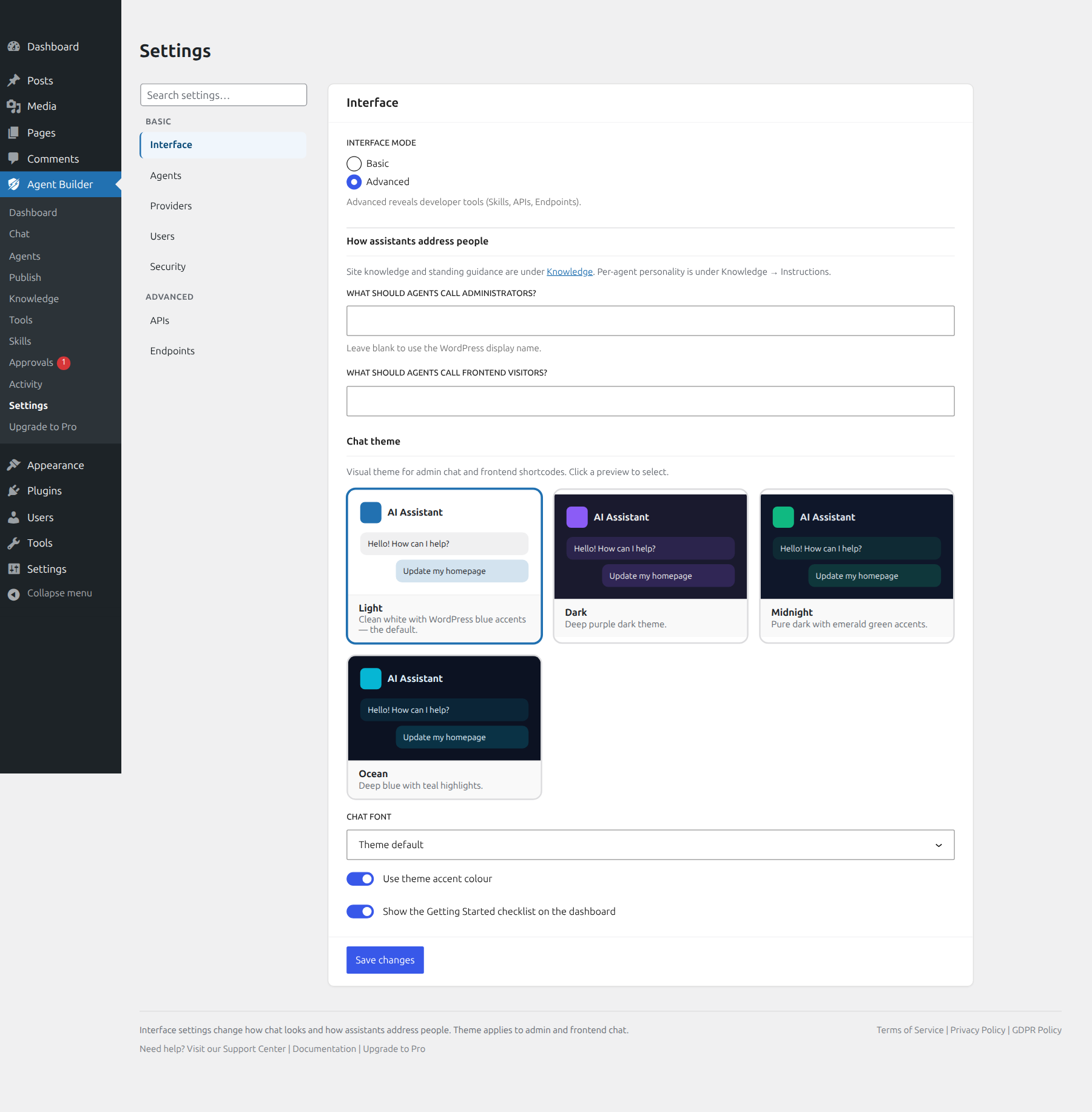
Settings Global tab

Overview

The Global tab in Agent Builder → Settings → Global controls the default appearance and features available in the chat interface across all agents on your site. Most settings can be overridden per agent in the Agents tab.

Chat Theme

Choose a visual theme for the agent chat interface. The theme applies to both the admin chat page and any frontend shortcode or block deployment.

  • Dark — deep purple dark theme (default)
  • Light — clean white with WordPress blue accents
  • Midnight — pure dark with emerald green accents
  • Ocean — deep blue with teal highlights

Chat Features

These toggles control which features are available to users in every chat session. Each can be overridden on a per-agent basis from the Agents tab.

Voice Input

Shows a microphone button in the chat input area. Users can click it to send messages by speaking. Uses the browser’s built-in speech recognition — no additional API key required. Supported in Chrome and most Chromium-based browsers.

Text-to-Speech

Adds a speaker button to each assistant response. Clicking it plays the response as audio using neural TTS voices. Requires prepaid credits — usage is deducted from your account balance.

Vision

Shows a paperclip button in the chat input area, allowing users to attach images. The assistant will analyse the image as part of its response. Requires a vision-capable LLM model to be configured.

Costs

Displays token usage and estimated cost in the chat footer after each message. Useful for monitoring credit consumption during development or for transparency with power users.

Response Cache

When enabled, identical queries return a cached response instead of making a new LLM call. Caching saves tokens, reduces cost, and improves response time for repeated questions.

Cache TTL

Controls how long a cached response is kept before it expires. Choose from 15 minutes, 30 minutes, 1 hour (recommended), 2 hours, 6 hours, or 24 hours.

Clear Cache

Tick this box and save to immediately clear all cached responses. The current cache entry count and cache status (Active or Disabled) are shown alongside the option.

Branding

By default, a small Powered by Agent Builder credit line appears in the chat footer. Tick Hide Branding to remove it. This option is available on all paid plans.