
Safety Controls by Default
Agent Builder starts in Supervised mode. Every tool an agent can use has a risk level. Read-only and low-risk actions run automatically. Medium-risk actions ask for your confirmation in chat. High-risk actions wait in the Approvals queue. Extreme-risk tools are blocked.
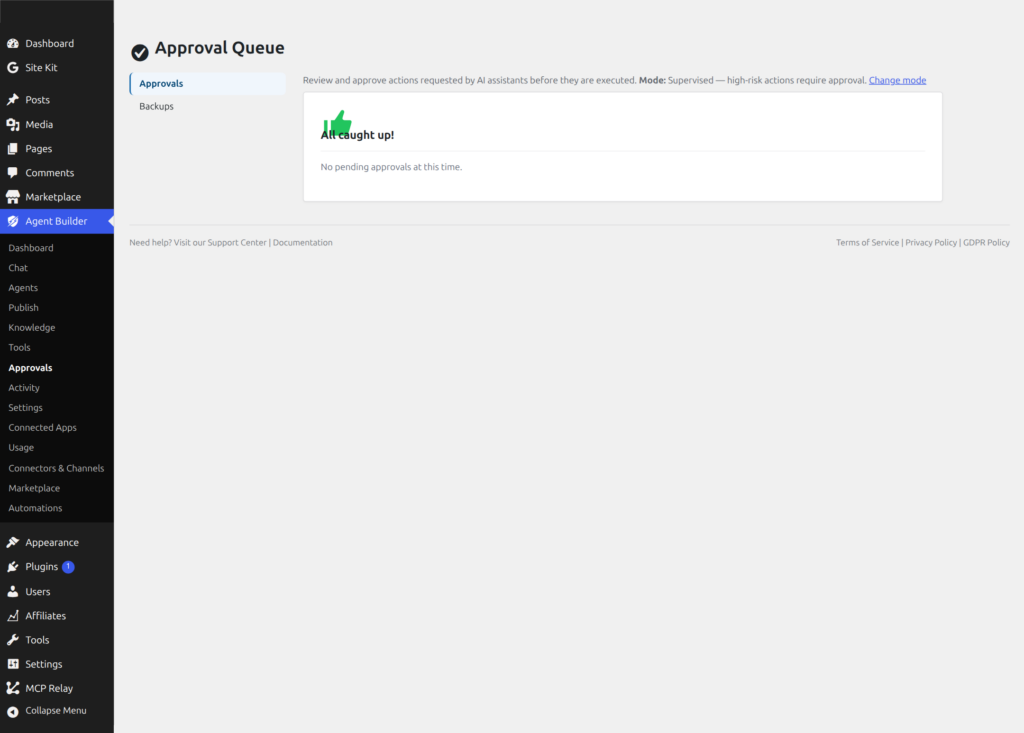
Permission System
Each assistant has granular permissions you control:
- Read posts/pages — View content on your site
- Write posts/pages — Create or modify content
- Read settings — View WordPress options
- Write settings — Change WordPress options
- Read files — View theme and plugin files
- Write files — Modify theme and plugin files
Enable only what each assistant needs. Write actions are also gated by their risk level (below).
Approval Workflow
Even with write permissions enabled, sensitive actions go through an approval process:
- The assistant proposes a change (e.g., “Create a new blog post titled…”)
- You see exactly what will change, including a preview
- You approve or reject the proposed change
- If approved, the change is applied and backed up
Audit Log
Agent tool calls are recorded in Agent Builder → Activity, a tamper-evident (hash-chained) log. Entries include:
- What action was requested
- Which assistant performed it
- When it happened
- Whether it was approved, rejected, or read-only
Automatic Backups
Before an assistant modifies a tracked file or database table, Agent Builder automatically saves a snapshot of the original. This covers posts, options, terms, metadata, robots.txt, llms.txt, and more.
Backups are stored in wp-content/agentic-backups/. Agent Builder keeps up to 3 snapshots per database table and restores in one click from Agent Builder → Approvals → Backups. Restoring also saves the current state first, so you can undo the undo.
See Backups and Restore for the full guide.
Risk Levels
Every tool in Agent Builder is assigned a risk level that determines how it is handled. Risk levels range from 1 (read-only, auto-approved) to 5 (extreme, disabled by default). This means even if an assistant has write permissions enabled, low-risk reads are instant while high-risk changes always require your review. The same risk model applies to core tools, agent-specific tools, and site-local tools (site-local admin builder is Pro; using shipped tools and developer Tool_Base tools is free — details on Agent Tools).
- Level 1 — Read-only: Auto-approved. No changes to your site. Examples: reading posts, listing plugins, querying the database.
- Level 2 — Low write: Adds or modifies non-critical metadata; whether it runs without a prompt depends on the approval level you choose. Examples: adding a tag, updating post meta.
- Level 3 — Medium write: Requires confirmation. Modifies published content or settings. Examples: updating a post, changing a site option.
- Level 4 — High write: Always requires confirmation. Deletes content or changes security-sensitive settings. Examples: deleting a post, changing a user role.
- Level 5 — Extreme: Disabled by default. Must be explicitly enabled in Settings. Examples: arbitrary SQL execution, shell commands.
Frequently Asked Questions
Can an AI assistant make changes to my site without me noticing?
Agent Builder is designed so that you can see changes. In Supervised mode, actions at risk level 3 and above ask for confirmation or wait in the Approvals queue before they run. In Autonomous mode, medium-risk actions run without a prompt, but high-risk actions still queue. In both modes, agent actions are recorded in the tamper-evident Activity log. If you find an unexpected change, the log shows what was done, when and by which agent, and where a backup was taken you can restore the previous state in one click.
What happens if I accidentally approve a destructive action?
Before a write action changes a tracked file or database table, Agent Builder saves a backup snapshot. It keeps the last 3 snapshots per table. Changes outside those tracked files and tables, such as email sent or calls to external APIs, cannot be rolled back this way. If you approve a change and regret it, go to Agent Builder → Approval Queue → Backups and restore the previous state. Restoring also creates a snapshot of the current state first, so you can undo the restoration too. See Backups and Restore for the full guide.
Can I give different assistants different permission levels?
Yes. Permission sets are configured per assistant in Settings → Agents. You might give your Content Writer read and write access to posts while your Site Doctor only has read access to settings and files. An assistant can only use the tools its permission set allows — even if those tools are technically available in the system, they are blocked for that assistant if its permissions do not include them.
Can visitors on the front end trigger assistant actions?
Only within the limits you configure for that assistant. If you deploy a front-end agent that only has read-only permissions, visitors can ask it questions but it cannot change anything on your site. If you deploy a front-end agent with write permissions, visitors can trigger write actions — which is appropriate for some use cases (e.g., a form-filling agent) but requires careful permission scoping. See Frontend Chat Security for best practices.
Does Agent Builder protect against prompt injection attacks?
Agent Builder implements several layers of protection against prompt injection — attempts by malicious content on your site to hijack the assistant’s actions. Tool execution is validated server-side regardless of the LLM’s output, file system access is restricted to the WordPress directory, and SQL tools use parameterised queries. Extreme-risk tools are disabled by default specifically because they are the most susceptible to injection-driven misuse.
Related Articles
Ready to put this to work?
Agent Builder is free forever — 8 AI agents, 261 tools, no API key needed.
Download Free Compare Free vs Pro