
Where to Find Chat
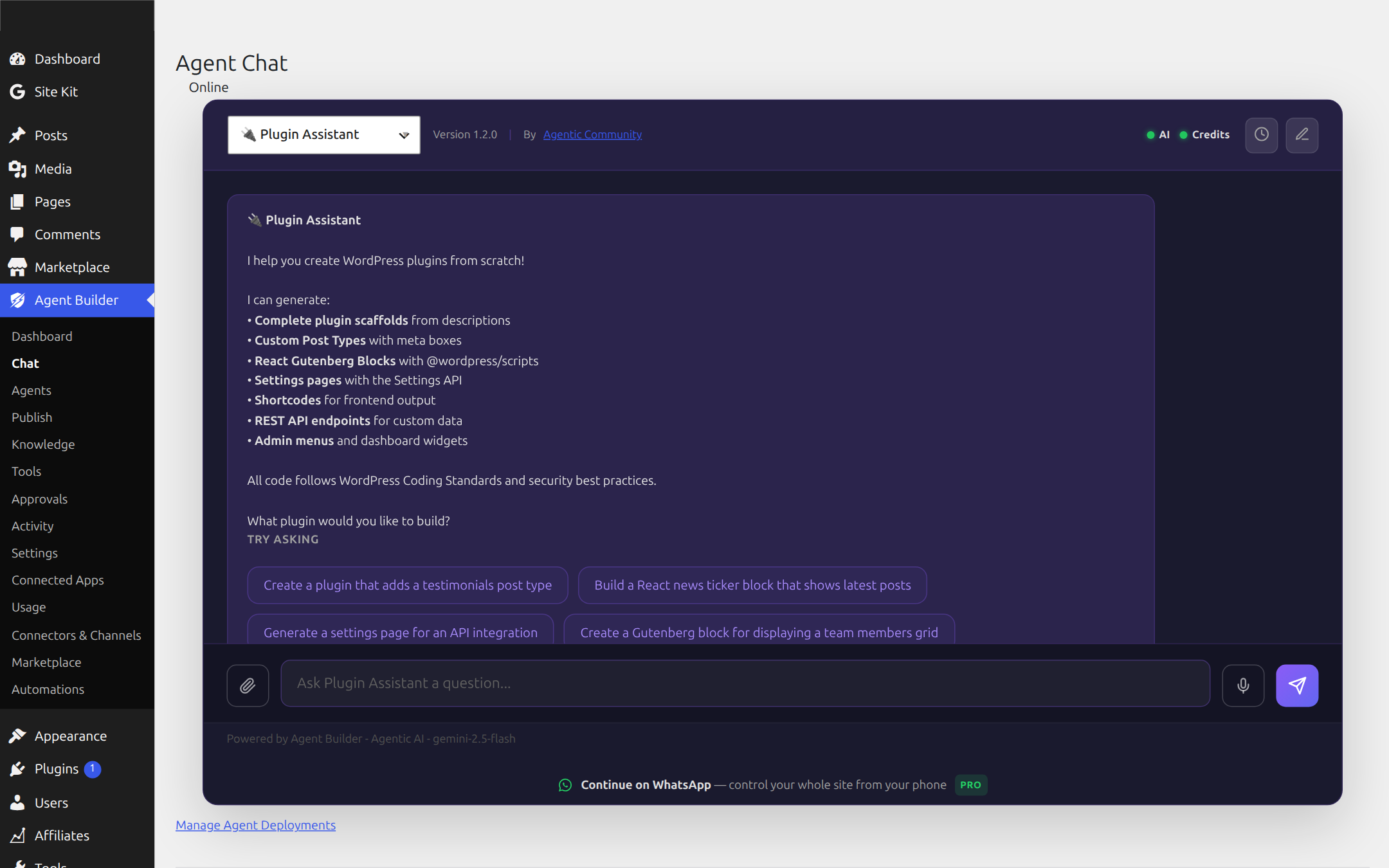
The chat interface is available at Agent Builder → Agent Chat in your WordPress admin. This is where you can talk directly to your AI assistants.
Using Chat
- Select an assistant from the dropdown (if you have multiple active)
- Type your request in plain English or click on the Mic and speak.
- Press Enter or click Send
- Wait for the assistant to respond — this usually takes 5–30 seconds depending on complexity
Tips for Better Results
- Be specific: “Write a 500-word blog post about spring gardening for beginners” works better than “Write something about gardening”
- Provide context: “Update the footer to match our brand colors (navy blue and gold)” gives the assistant what it needs
- Ask follow-ups: If the first result is not quite right, tell the assistant what to change — it remembers the conversation
Approving Changes
When an assistant wants to make a change to your site (creating a post, modifying a file, changing a setting), it will ask for your approval first. You will see a clear description of what will change, and you can approve or reject it.
Read-only actions (viewing posts, checking settings, listing content) happen automatically without needing approval.
Conversation History
Chat history is maintained during your session. When you close the browser or log out, the conversation resets. Each new session starts fresh.
Frontend Chat
Assistants can also be embedded on the front end of your site using a shortcode, allowing your visitors to interact with a specific AI assistant that you chose to make public.
Learn more about Frontend Security for public Assistants.
To customise the chat appearance — including theme colours, voice input, image uploads, cost display, and branding — see Chat Styles & Themes.
Frequently Asked Questions
How long does it take for the assistant to respond?
Simple questions — “how many posts do I have?” or “what PHP version is running?” — typically respond in 2–5 seconds. Tasks that involve multiple steps, like drafting a full blog post and creating it as a draft, usually take 10–30 seconds. Tasks that involve reading large files or looping through many posts can take longer. Response time also depends on which AI model you have configured — faster models like GPT-4o Mini respond in roughly half the time of GPT-4o or Claude Opus.
Is my conversation history saved between sessions?
Chat history is maintained for the duration of your browser session. When you close the tab, log out, or reload the page, the conversation resets. This is intentional — it keeps the assistant’s context focused and prevents stale context from affecting future tasks. If you need to pick up where you left off, include relevant context in your first message (“continuing from yesterday — the homepage hero section needs a CTA button added”). For persistent memory across sessions, agents can use the Agent Memory system to store key preferences and decisions.
Can I use voice input instead of typing?
Yes. If Voice Input is enabled in Settings → Global, a microphone button appears in the chat input area. Click it, speak your request, and it is transcribed using your browser’s built-in speech recognition. Voice input works in Chrome and most Chromium-based browsers (Edge, Brave, Arc). Firefox and Safari have limited or no support for the Web Speech API used by this feature. No additional API key or setup is required.
Can I send images or files to the assistant?
Yes — if Vision is enabled in Settings → Global and your configured AI model supports image inputs. When Vision is on, a paperclip button appears in the chat input. You can attach screenshots, design mockups, or photos, and the assistant will analyse them as part of its response. This is useful for tasks like “here is a screenshot of my homepage — what’s wrong with the layout?” or “analyse this product photo and write alt text.” You also need a vision-capable model configured: GPT-4o, Claude 3.5 Sonnet, and Gemini 1.5 Pro all support vision.
How do I approve or reject an action the assistant wants to take?
When the assistant plans to make a change to your site, it pauses and shows you a proposal — a clear description of what it will do, which files or records will be affected, and what the change looks like. You click Approve to proceed or Reject to cancel. Rejected actions are discarded and the assistant will ask how you want to proceed instead. You can also approve a modified version by editing the proposal before approving. If you want the assistant to proceed without stopping for confirmation on low and medium-risk actions, set Confirmation Mode to Autonomous in the agent’s settings. See Permissions and Safety for full details on risk tiers.
Related Articles
Ready to put this to work?
Agent Builder is free forever — 8 AI agents, 261 tools, no API key needed.
Download Free Compare Free vs Pro