
Every AI assistant on your site can use a different AI provider, model, and operating mode. This gives you precise control over quality, speed, cost, and capabilities — rather than locking every assistant into one global setting.
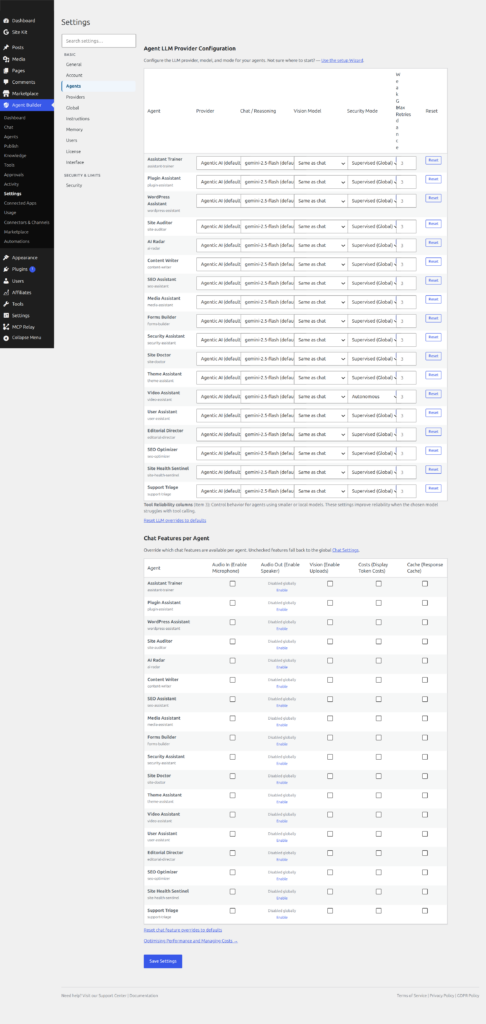
Configure these overrides at Agent Builder → Settings → Agents, in the Agent Configuration table below the global settings.
Why Per-Agent Control Matters
Different assistants have fundamentally different jobs. Your Content Writer produces long-form text — it benefits from a large context window and strong writing quality. Your SEO Assistant runs quick audits and needs fast, cheap responses. Your Security Assistant runs on a cron schedule overnight and can afford to be slow but needs to be reliable and thorough. A one-size-fits-all model is almost always the wrong compromise for at least half your assistants.
The Three Controls
Provider
Each assistant can use a different AI provider. Only providers you have configured (i.e. have a saved API key for) appear in the dropdown — so you will never accidentally assign an unconfigured provider to an assistant.
Common reasons to mix providers:
- Route creative writing tasks to Anthropic Claude for its superior prose quality, while using OpenAI GPT-4o mini or Google Gemini Flash for high-volume, repetitive tasks to keep costs low.
- Use Ollama (local, free) for internal or sensitive tasks where no data should leave your server, while keeping cloud providers for tasks that need the latest models.
- Route image-analysis tasks (document scanning, screenshot review) to a vision-capable provider like OpenAI or Google, which support image input in their models.
Model
Within a provider, models vary significantly in capability, speed, and cost. Once you select a provider for an assistant, the model dropdown populates with available models for that provider. Key trade-offs to understand:
| Model tier | Speed | Cost | Best for |
|---|---|---|---|
| Mini / Flash / Fast | Very fast | Low | High-volume tasks, quick audits, scheduled sweeps |
| Standard | Moderate | Medium | General chat, content drafting, Q&A |
| Pro / Opus / Premium | Slower | High | Complex reasoning, code generation, long documents |
Vision models (e.g. gpt-4o, gemini-2.0-flash, claude-3-5-sonnet) can process images and documents you pass into the conversation. If you need an assistant to analyse screenshots, scan uploaded PDFs, or review product photos, assign it a vision-capable model. Note that image inputs consume significantly more tokens than text — budget accordingly.
Smaller “mini” or “flash” models are ideal for assistants that run on a schedule (e.g. nightly content sweeps, hourly security checks) because they execute quickly and generate minimal cost at scale. Reserve premium models for tasks where output quality is the priority.
For the full list of available models, context window sizes, vision support, and current pricing for each provider:
- OpenAI — Models overview (GPT-4o, GPT-4o mini, o3, o4-mini and more)
- Anthropic — Claude models overview (Claude 3.5 Sonnet, Claude 3.5 Haiku, Claude 3 Opus and more)
- xAI — Grok models overview (Grok 3, Grok 3 Mini, Grok 2 Vision and more)
- Google — Gemini models overview (Gemini 2.0 Flash, Gemini 2.0 Pro, Gemini 1.5 Flash and more)
- Mistral — Models overview (Mistral Large, Mistral Small, Codestral and more)
- Ollama — Model library (Llama 3, Mistral, Gemma, Phi, Qwen and more — all free, runs locally)
Mode
Mode controls how much autonomy an assistant has to make changes on your site. Each assistant can operate in a different mode, independently of the global setting:
- Global default — inherits whatever you have set as the global Agent Mode above the table.
- Supervised — the assistant proposes changes and waits for your approval before executing them. Safe for assistants that touch important content or settings.
- Autonomous — the assistant executes changes immediately without asking. Useful for trusted, well-understood assistants running routine tasks (e.g. a nightly content refresher or SEO fixer).
- Disabled — the assistant will not respond to chat at all. Use this to temporarily suspend an assistant without deactivating or deleting it.
Note: Assistants that run on a schedule (via the Scheduled Tasks feature) always run in Autonomous mode regardless of this setting — they have no interactive step to present proposals. Mode overrides apply to chat-based interactions.
Practical Examples
Document and Image Analysis
If you want an assistant to analyse uploaded images or documents in the chat, assign it a vision-capable model such as gpt-4o (OpenAI) or gemini-2.0-flash (Google). Other assistants that only handle text can stay on a cheaper non-vision model — this avoids paying the vision premium on every request across the board.
Fast Replies for High-Traffic Assistants
An assistant embedded in your site’s frontend chat (via shortcode) may be used by many visitors. Assign it a fast, low-latency model — gpt-4o-mini, gemini-2.0-flash, or a locally running Ollama model — to keep response times under two seconds even under load. Use a premium model only for the backend admin assistant where response latency is less critical.
Cost Isolation
Pin your most-used assistants to the cheapest available model for their task. A daily SEO audit that checks 50 posts doesn’t need GPT-4 — gpt-4o-mini at a fraction of the cost produces perfectly adequate analysis for that job. Reserve expensive models for tasks where the quality difference is actually noticeable (long-form writing, complex code, nuanced analysis).
Privacy-First with Ollama
For assistants that handle sensitive data — customer records, internal financial content, private communications — assign them an Ollama provider running a local model. No prompt data ever leaves your server. Other assistants that only handle public content can continue using cloud providers. This hybrid approach gives you strong privacy guarantees where it matters without degrading the experience elsewhere.
Supervised vs Autonomous by Risk Level
Set your Content Writer to Supervised so you review every post before it goes live. Set your SEO Assistant to Autonomous so it can fix meta descriptions without interrupting your workflow. Set your Security Assistant to Autonomous for its scheduled sweeps (it only reports; it doesn’t modify content). This avoids a global mode that either locks everything down or opens everything up.
Managing Costs Effectively
Per-agent model assignment is the most effective lever for controlling AI costs:
- Check estimated costs on each provider’s pricing page before assigning a model. See Connecting an AI Provider for links to all provider pricing pages.
- Use the Dashboard and Activity to monitor token consumption per assistant. If one assistant is generating a disproportionate share of costs, check whether it needs a premium model or whether a cheaper one would do.
- Scheduled assistants that run frequently (e.g. hourly) should almost always use the cheapest capable model.
- Enable Response Caching (Settings → Global) to avoid re-sending identical prompts to the AI provider — especially useful for assistants embedded in public-facing pages.
- Set a monthly spending cap in your provider’s own dashboard. This is separate from anything in Agent Builder but provides a hard stop against unexpected charges.
Resetting Overrides
Each row in the Agent Configuration table has a Reset button. Clicking it clears all three overrides (provider, model, and mode) for that assistant, returning it to the global defaults. Use this if you want to consolidate back to a single configuration after experimenting.
Related: Settings · Connecting an AI Provider · Choosing an AI Provider · Permissions and Safety
Related Articles
Ready to put this to work?
Agent Builder is free forever — 8 AI agents, 261 tools, no API key needed.
Download Free Compare Free vs Pro