
Agent Builder’s Site Auditor and Site Doctor agents use Google’s PageSpeed Insights API to run real-time performance, accessibility, and SEO checks on your website. This guide explains why these checks matter for your website, how our shared API key works, and how to get your own free GPI key for unlimited checks.
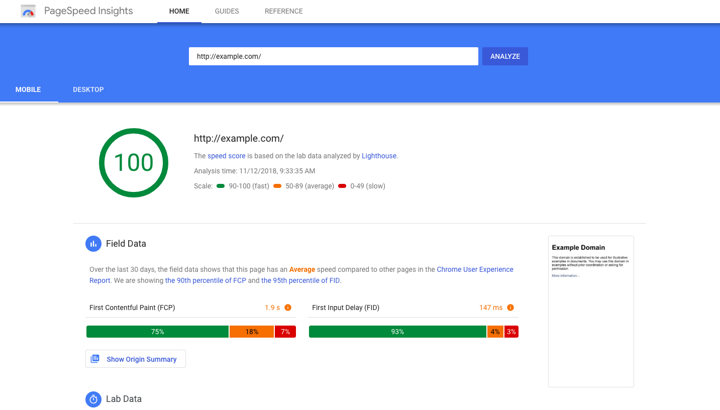
Why PageSpeed Matters
Page speed directly affects your website’s success in three important ways:
- Search Engine Rankings — Google uses Core Web Vitals (loading speed, interactivity, and visual stability) as ranking signals. Faster sites rank higher.
- User Experience — Visitors expect pages to load in under 3 seconds. Slow sites see higher bounce rates and lower engagement.
- Conversions — Studies consistently show that every second of delay reduces conversions. A 1-second improvement can increase mobile conversions by up to 27%.
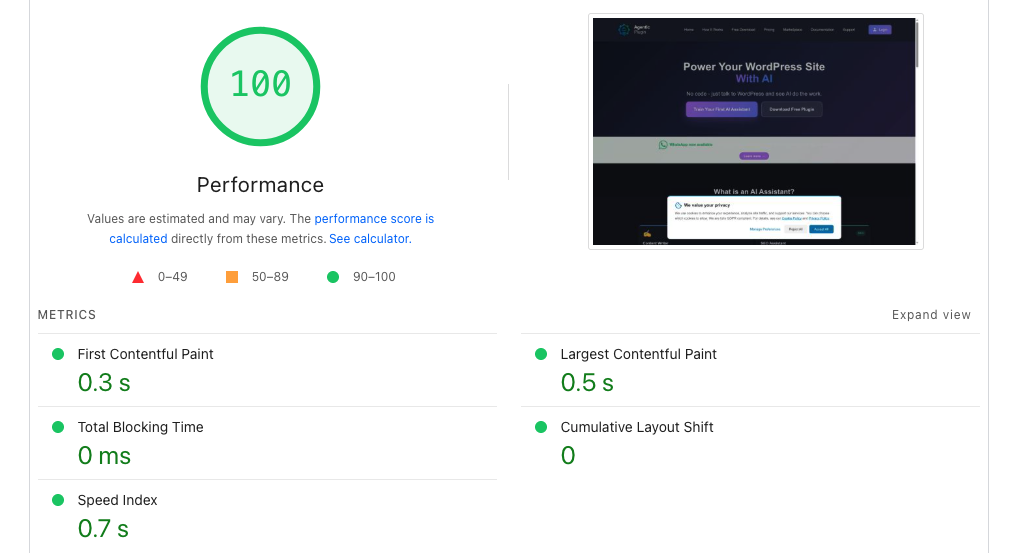
By running automated PageSpeed checks, your AI agents can identify performance bottlenecks, suggest specific improvements, and track progress over time — all without you having to manually run tests.
How Agent Builder Uses the PageSpeed API
When you ask Site Auditor or Site Doctor to check your site’s performance, they call Google’s PageSpeed Insights API behind the scenes. The API returns detailed metrics including:
- Performance Score — Overall speed rating (0–100)
- Largest Contentful Paint (LCP) — How quickly the main content loads
- Cumulative Layout Shift (CLS) — How much the page shifts while loading
- First Contentful Paint (FCP) — When the first content appears
- Total Blocking Time (TBT) — How long the page is unresponsive to input
- Speed Index — How quickly content is visually displayed
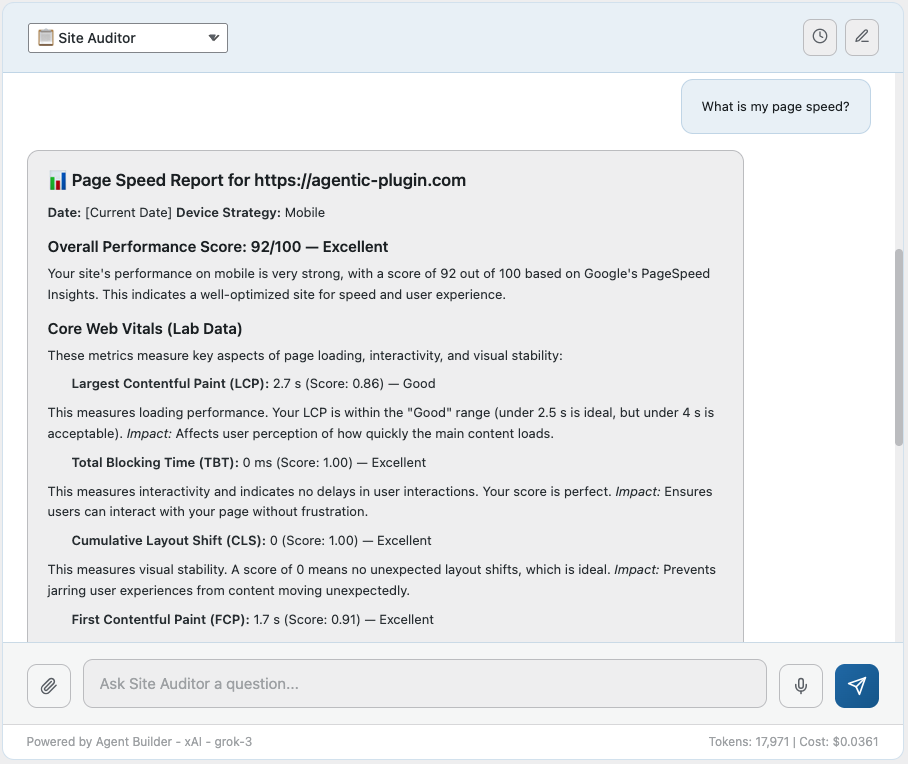
Your AI assistants use these metrics to give you actionable recommendations tailored to your specific site. Ask the agent any question about these metrics and the agent will provide answers in a simplified way that anyone can understand.
The Shared API Key
To make it easy to get started, we provide everyone with a shared API key so PageSpeed checks work right out of the box — no setup required. However, because this key is shared across all free-tier installations, it comes with usage limits:
- 10 checks per day — Resets daily at midnight UTC
- 100 checks lifetime — Total queries on the shared key per installation
These limits are designed to let you explore the feature and see how useful it is. For ongoing use, especially on production sites, you’ll want your own API key — and the great news is that it’s completely free.
Getting Your Own Free API Key
Google provides the PageSpeed Insights API for free with generous limits — 25,000 queries per day at no cost. Setting up your own key takes about 2 minutes. Here’s how:
Step 1 — Open Google Cloud Console
Go to console.cloud.google.com and sign in with your Google account. If you don’t have a Google Cloud account yet, you can create one for free — no credit card required for API key usage.
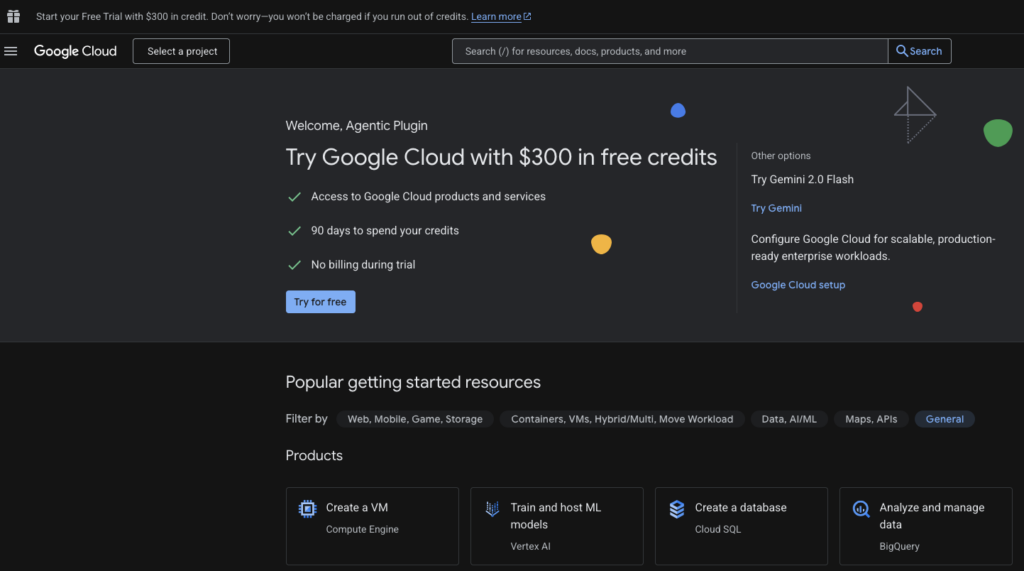
Step 2 — Create a Project (if needed)
If you don’t already have a project, click Select a Project at the top of the page, then click New Project. Give it a name like “My WordPress Tools” and click Create.
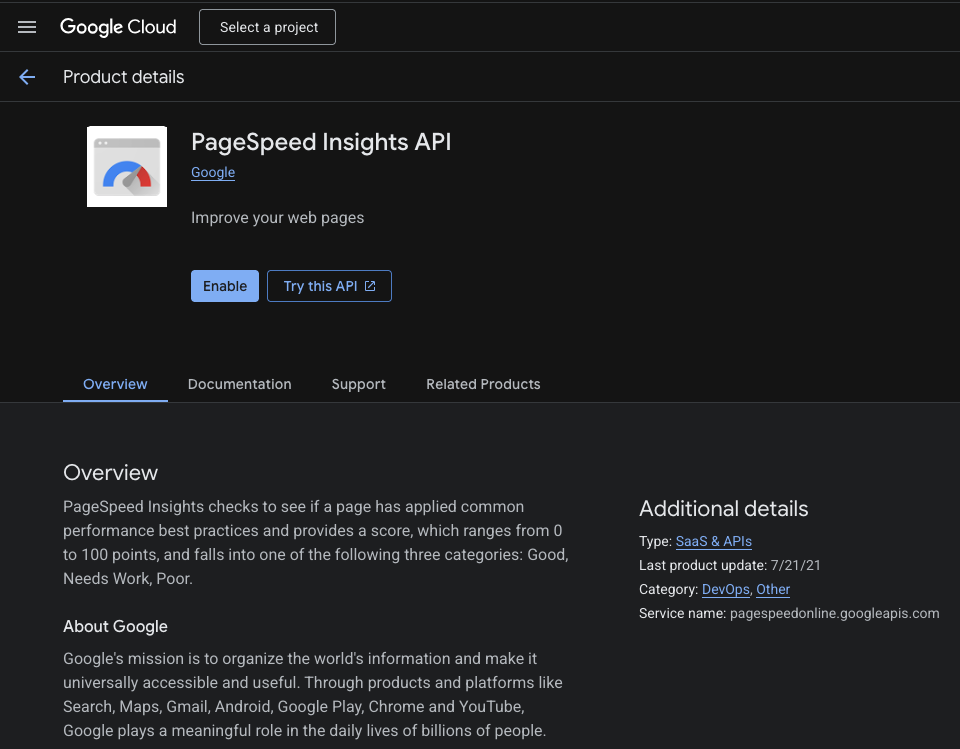
Step 3 — Enable the PageSpeed Insights API
Navigate to APIs & Services → Library and search for “PageSpeed Insights API”. Click on it and then click the Enable button.
Step 4 — Create an API Key
Go to APIs & Services → Credentials. Click + Create Credentials at the top of the page, then select API Key. Your new key will be created and displayed immediately.
Step 5 — (Recommended) Restrict Your Key
While optional, it’s good security practice to restrict your API key so it can only be used for PageSpeed checks. Click Edit API Key (or the pencil icon), scroll to API restrictions, select Restrict key, and choose PageSpeed Insights API from the dropdown. Click Save.
Step 6 — Add Your Key to Agent Builder
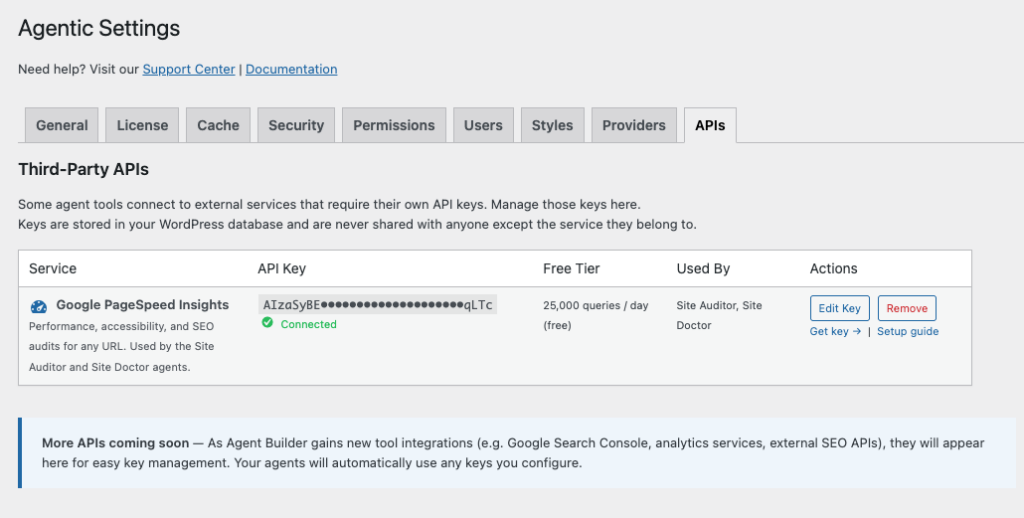
Copy your new API key (it starts with AIzaSy...). In your WordPress admin, you’ll see the PageSpeed API Key prompt in the dashboard notice. Paste your key into the field and click Save API Key. That’s it — you now have unlimited PageSpeed checks!
Should you decide to add the API key later – simply go to Agent Builder Settings and click on the API’s tab.
Frequently Asked Questions
Is the API key really free?
Yes! Google provides 25,000 PageSpeed Insights queries per day at no cost. You won’t need to enter a credit card or sign up for billing.
What happens when I hit the shared key limit?
Your AI agents will still work perfectly for all other tasks — they’ll just skip the speed test portion and let you know that the PageSpeed check couldn’t run. A notice in the Agent Builder dashboard will guide you through setting up your own key.
Can I use the same key for other projects?
Absolutely. A single Google Cloud API key can be used across multiple WordPress installations and even other tools that use the PageSpeed Insights API.
Where is my key stored?
Your API key is saved in your WordPress database as a standard WordPress option. It never leaves your server except when making direct API calls to Google.