Agents
Configure each assistant's LLM provider, model, operating mode, and chat features individually — or leave them on the global defaults.
LLM Provider Overrides
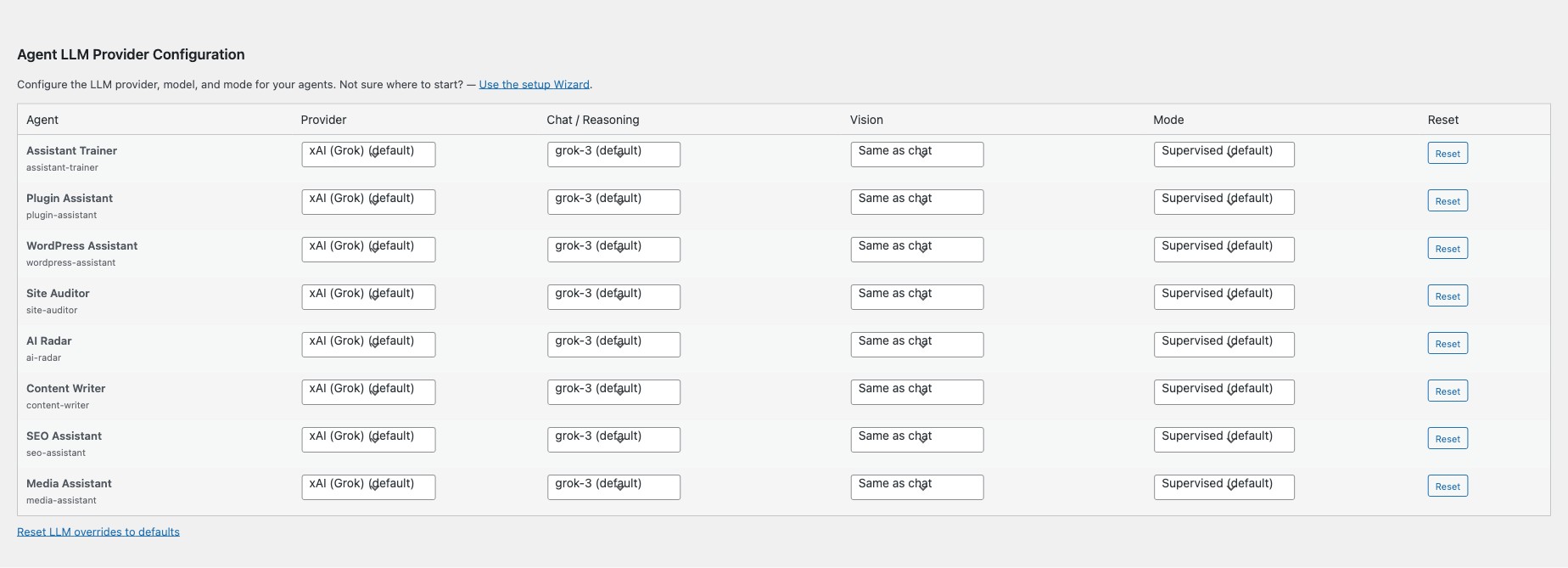
A table lists every installed assistant with columns for:
- Provider — override the global provider for this assistant (e.g. use Anthropic for one agent while the rest use OpenAI).
- Chat / Reasoning Model — pick a specific model from the selected provider.
- Vision Model — optionally set a separate model for image analysis.
- Mode — Disabled, Supervised (default), or Autonomous — overrides the global agent mode for this assistant only.
- Reset — revert an individual assistant back to global defaults.
Chat Feature Overrides
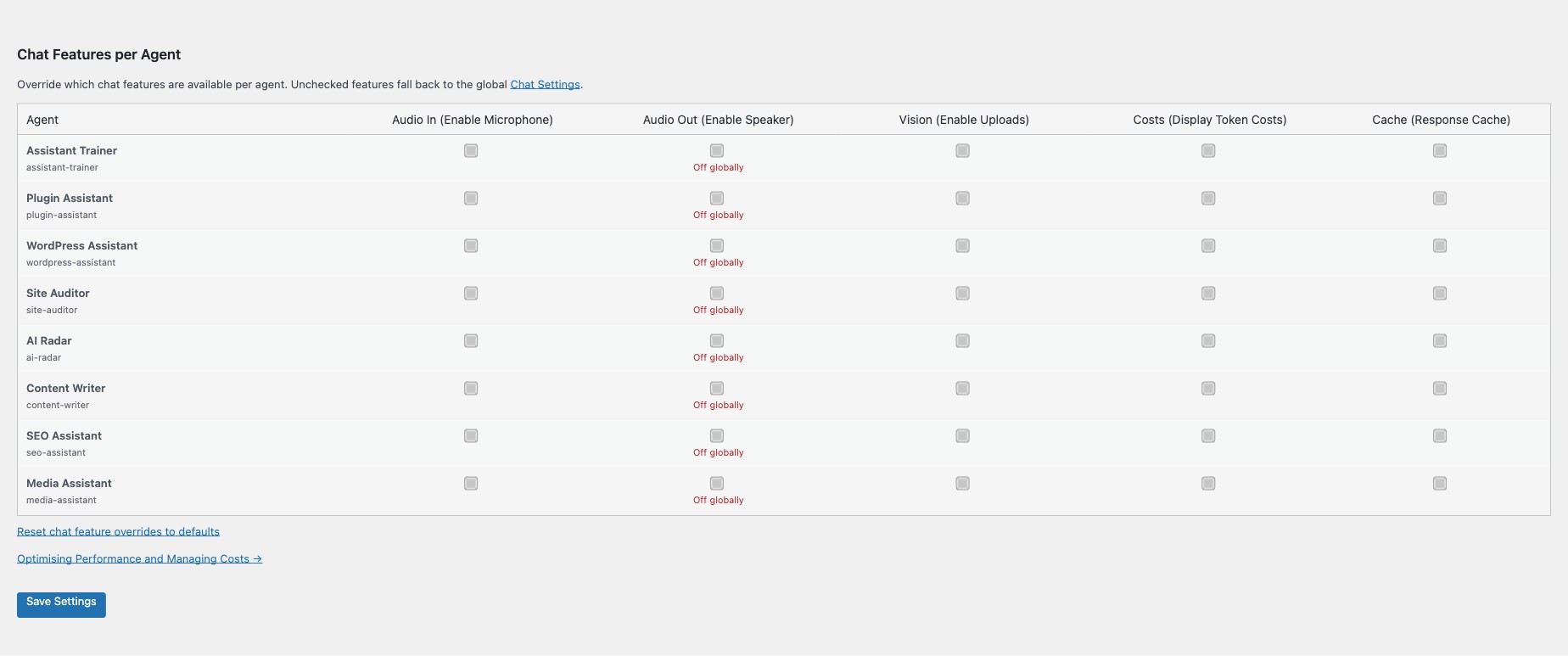
A second table lets you toggle chat features per assistant, overriding the global settings in the Styles tab:
- Audio In — enable/disable microphone (voice input via browser speech recognition).
- Audio Out — enable/disable text-to-speech speaker button (uses prepaid credits).
- Vision — enable/disable image upload for the assistant to analyse.
- Costs — show/hide token usage and cost estimates in chat.
- Cache — enable/disable response caching per assistant.
Styles
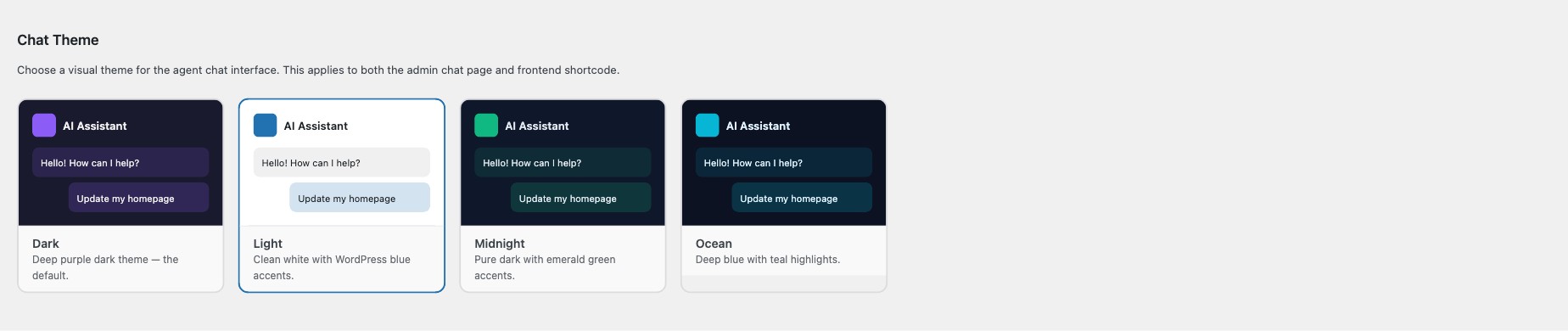
Chat Theme
Choose the visual theme for the chat interface:
- Dark (default) — deep purple dark theme.
- Light — clean white with WordPress blue accents.
- Midnight — pure dark with emerald green accents.
- Ocean — deep blue with teal highlights.
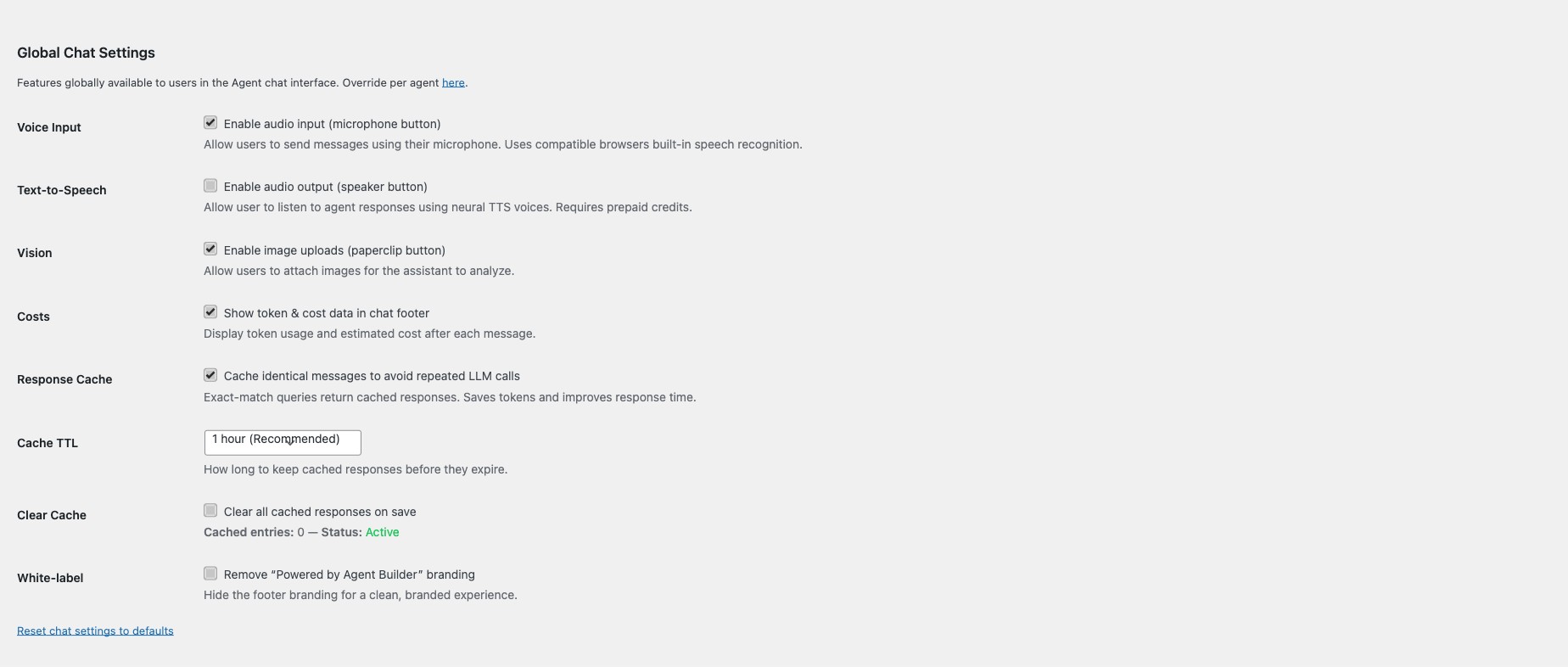
Global Chat Settings
These apply to all assistants by default. Override per assistant in the Agents tab.
- Voice Input — enable the microphone button for browser speech recognition.
- Text-to-Speech — enable the speaker button so assistants read responses aloud (requires prepaid credits).
- Vision — enable the image upload button.
- Costs — display token usage and estimated cost in the chat footer.
- Response Cache — cache identical prompts so the same question is not sent to the provider twice.
- Cache TTL — how long cached responses are kept (default: 1 hour, range: 15 minutes to 24 hours).
- Clear Cache — purge all cached responses on save.
- White-label — remove "Powered by Agent Builder" branding (requires Personal or Agency license).
Shortcode Appearance
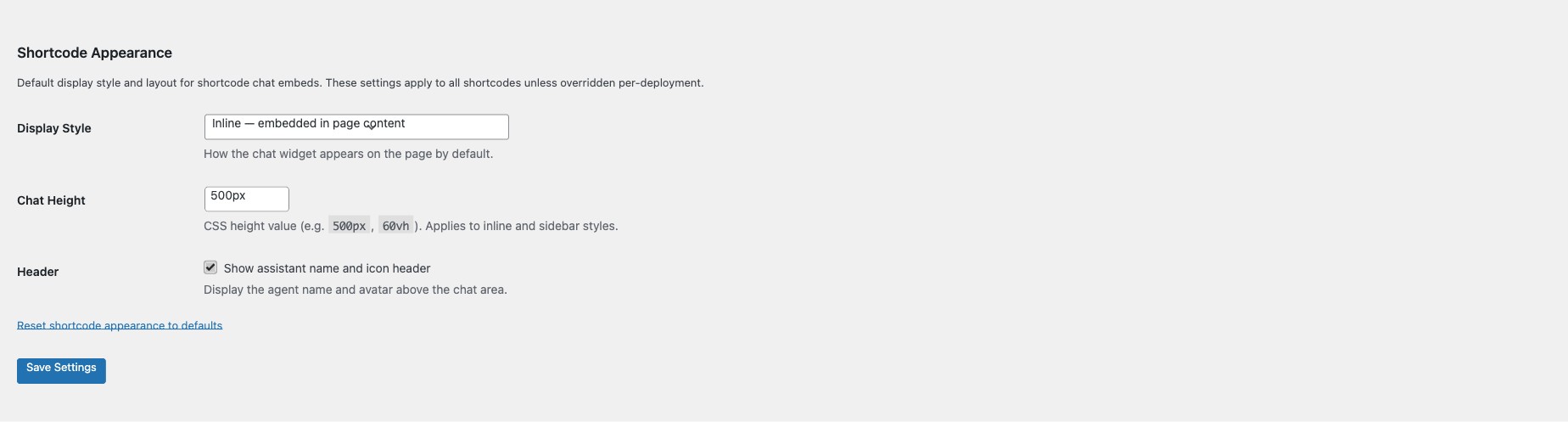
Configure the default display for the [agentic_chat] shortcode:
- Display Style — Inline (embedded in page), Popup (floating overlay), or Sidebar.
- Chat Height — any CSS value (e.g.
500pxor60vh). - Header — show or hide the assistant name and icon above the chat.
Personas
Customise how each assistant greets visitors and adjust its personality. Select an assistant from the dropdown, then configure:
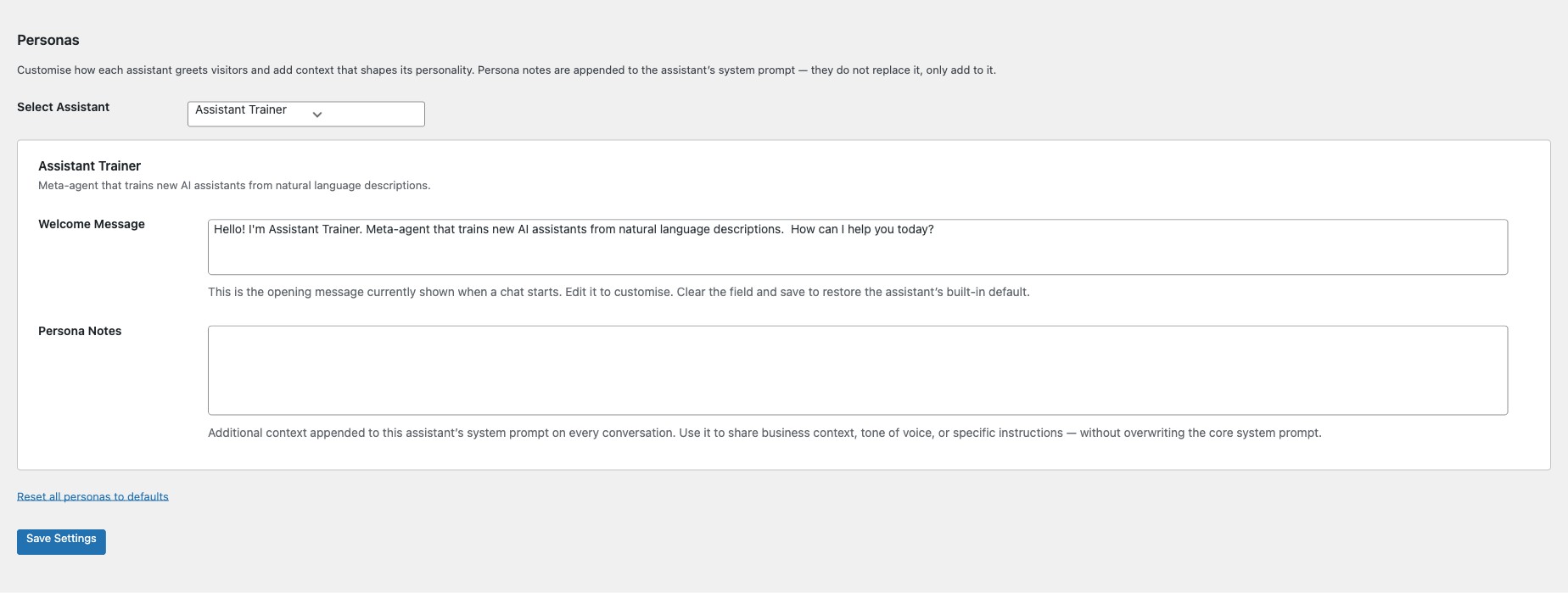
- Welcome Message — the opening message shown when a chat session starts. Clear the field to restore the assistant's default greeting.
- Persona Notes — additional context appended to the assistant's system prompt on every conversation. Use this to set tone of voice, business context, or specific instructions (e.g. "Always respond in Spanish" or "You work for Acme Corp, a SaaS company").
- Knowledge — reference information injected into the assistant's system prompt on every conversation. Use this for business details, product specs, FAQs, policies, or any structured data the assistant should know. The content is saved as a knowledge file and automatically linked via the agent's
abilities.jsonmanifest.
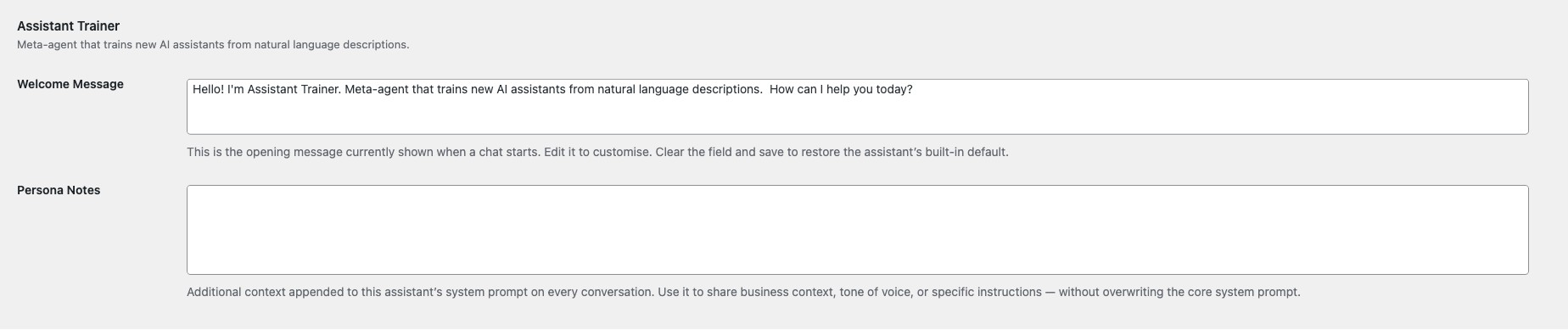
How Knowledge differs from Persona Notes: Persona Notes shape how the assistant behaves (tone, style, rules). Knowledge provides factual reference data (product catalog, pricing, company info) that the assistant can cite in responses. Both are appended to the system prompt, but Knowledge is stored as a file and can be shared across agents via abilities.json.
Need to train on larger documents? The Knowledge field above is ideal for concise reference data like FAQs, policies, and business details. For larger content — PDFs, full website pages, or extensive documentation — use the Train on Data page to upload files and train the vector store. Trained data is available to all AI assistants via retrieval-augmented generation (RAG).
Providers
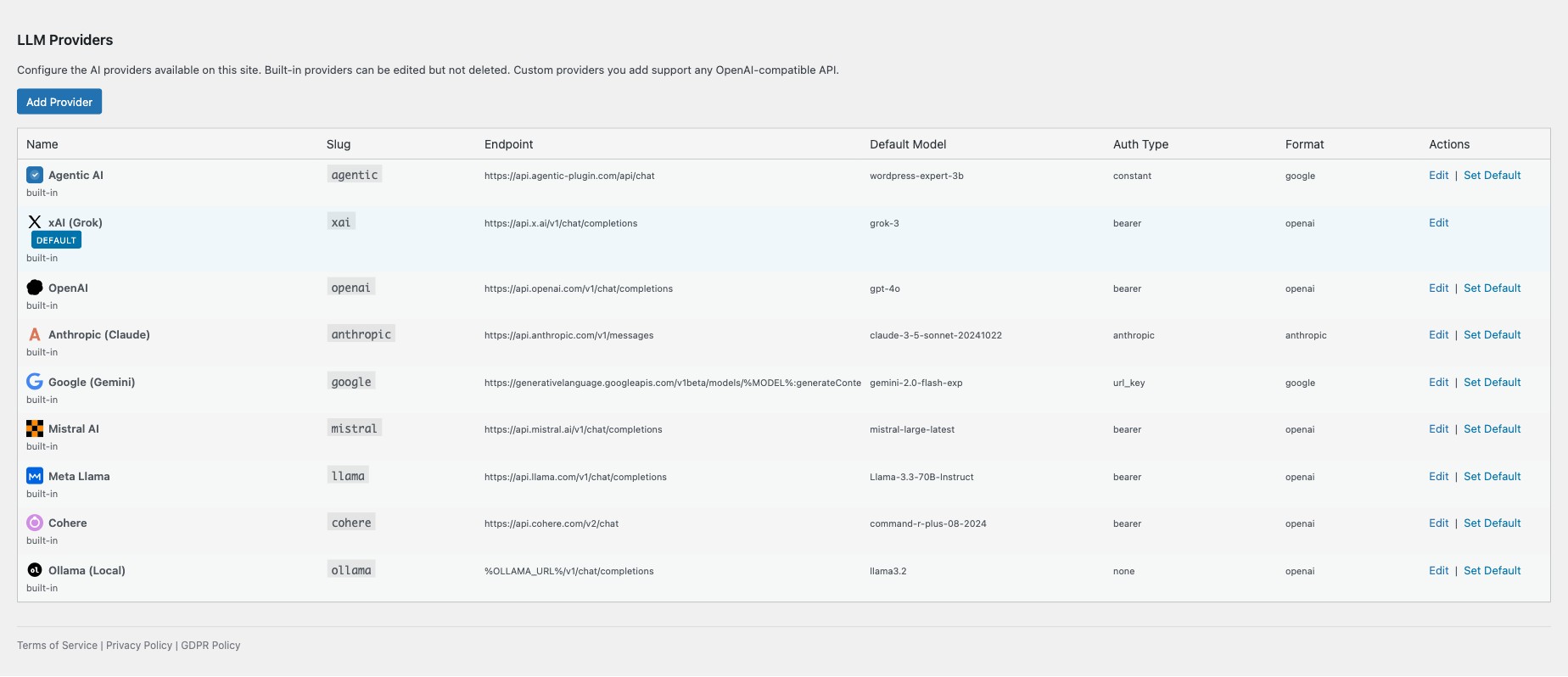
Register and configure your LLM providers. Agent Builder supports multiple providers simultaneously — set a global default and override per assistant in the Agents tab.
- Agentic AI — the built-in provider. Works immediately with no API key — powered by Google Gemini, uses prepaid credits.
- OpenAI — GPT-4o, o3, and newer models.
- Anthropic — Claude Sonnet and Opus.
- Google Gemini — Gemini 2.0+ via REST API.
- xAI — Grok models.
- Mistral — Mistral and Mixtral models.
- Meta Llama — Llama models.
- Cohere — Command models.
- Ollama — run models 100% locally with no external API calls.
- Custom — any OpenAI-compatible endpoint.
Each provider can be configured with its API key, endpoint URL, and preferred models. A live connection test verifies the key works before saving.
Security
Agent Mode
The global agent mode controls how assistants handle actions:
- Supervised (default) — write actions pause for your approval before executing.
- Autonomous — all actions execute immediately without confirmation.
- Disabled — assistants cannot perform any actions.

Message Scanning
Enable the security filter to scan incoming messages for prompt injection attempts and malicious content. Adds less than 1ms overhead per message.

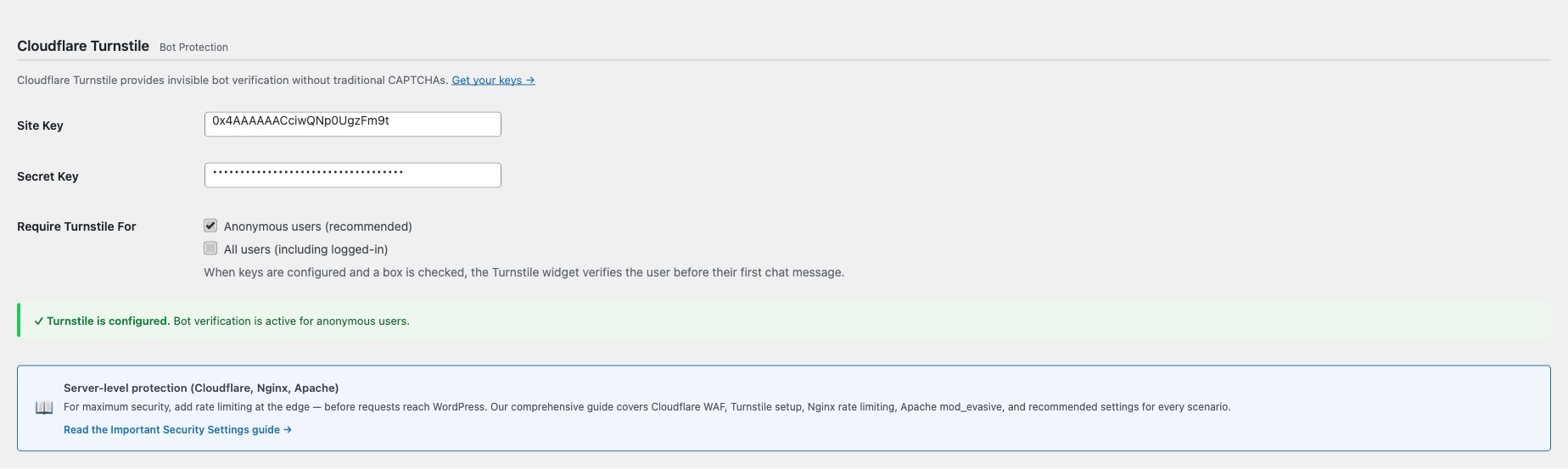
Cloudflare Turnstile
Bot protection without traditional CAPTCHAs. Configure your Turnstile Site Key and Secret Key, then choose whether to require verification for:
- Anonymous users only (recommended).
- All users including logged-in.
Data & Privacy (GDPR)
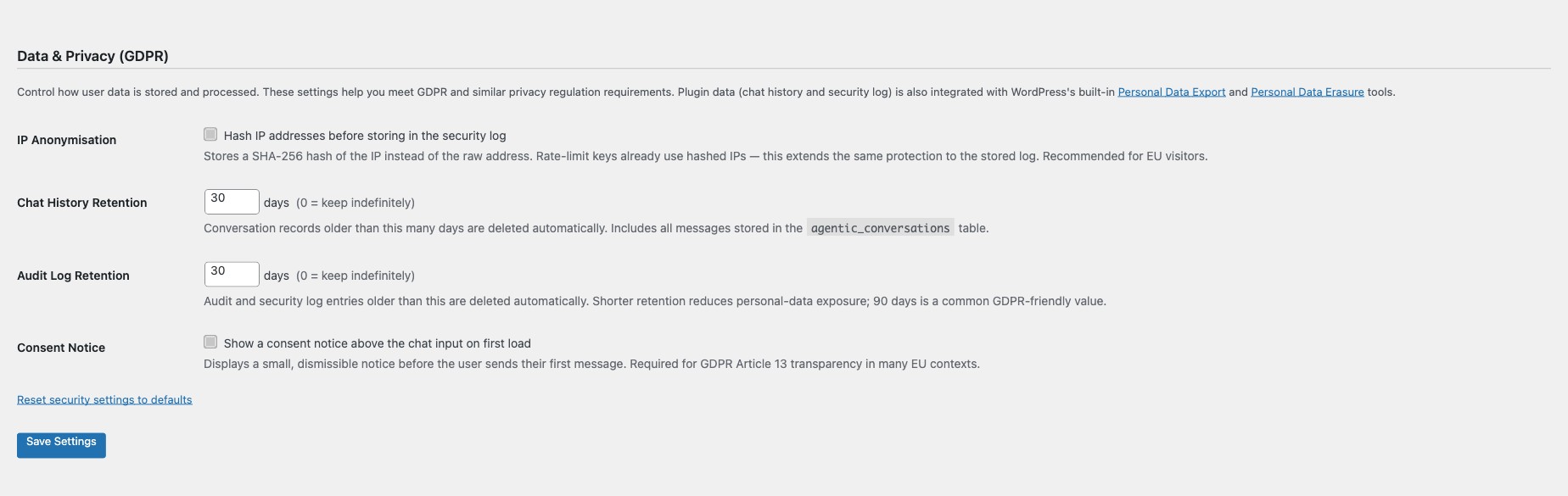
- IP Anonymisation — hash IP addresses with SHA-256 before storing in the security log.
- Chat History Retention — automatically delete conversation records after a set number of days (default: 30, set to 0 to keep indefinitely).
- Audit Log Retention — automatically delete audit log entries after a set number of days (default: 30).
- Consent Notice — optionally show a consent banner above the chat input on first load. The notice text is customisable.
The plugin integrates with WordPress Privacy Tools for Personal Data Export and Erasure requests.
Users
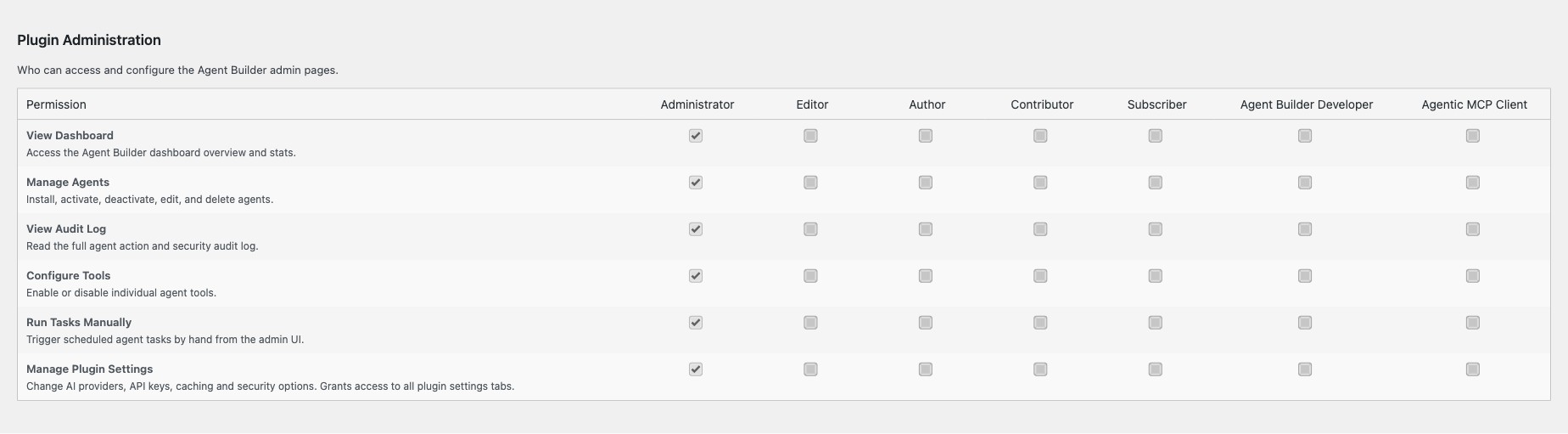
Plugin Administration
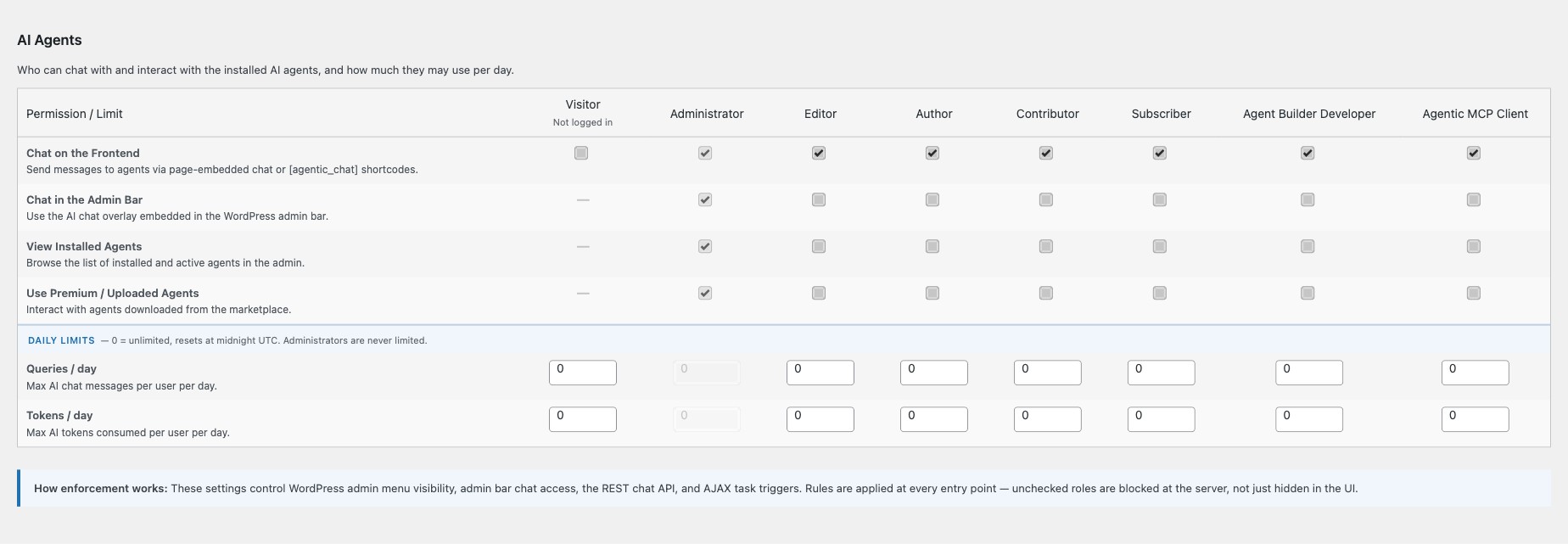
Control which WordPress roles can access plugin features: manage settings, manage agents, manage tools, view the audit log, and more. Administrators always have full access. A role must have at least one permission ticked to access the plugin at all.
AI Agent Access
- Chat Frontend — which roles can use the chat on frontend shortcodes.
- Chat Admin — which roles can access the chat in the admin dashboard.
- Anonymous visitors — allow non-logged-in visitors to use the frontend chat.
Daily Usage Limits
Set per-role daily limits to control AI usage:
- Queries/day — maximum chat messages per user per day (0 = unlimited).
- Tokens/day — maximum tokens consumed per user per day (0 = unlimited).
Limits reset at midnight UTC. Administrators are never limited.
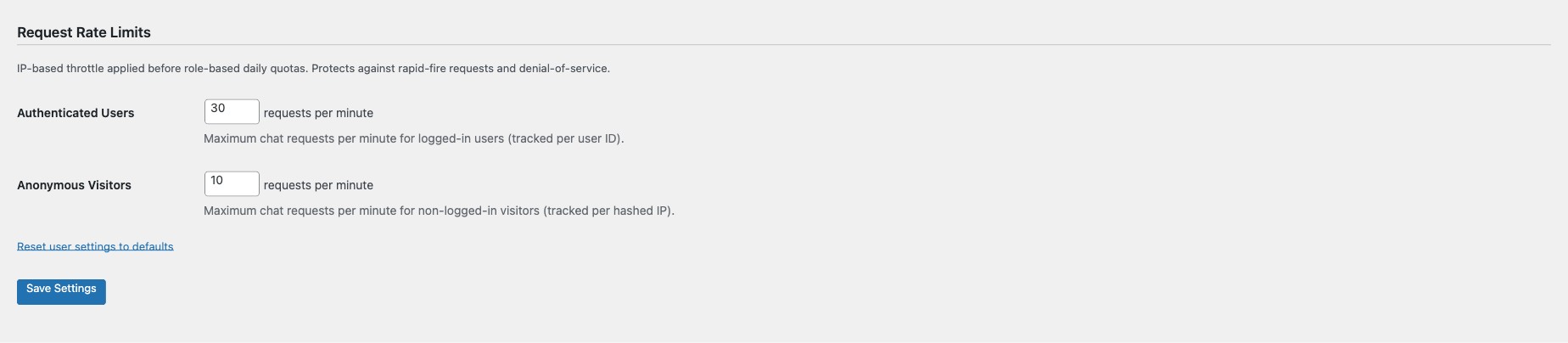
Request Rate Limits
IP-based throttling applied before daily quotas:
- Authenticated users — requests per minute (default: 30, range: 5–300).
- Anonymous visitors — requests per minute (default: 10, range: 1–60).
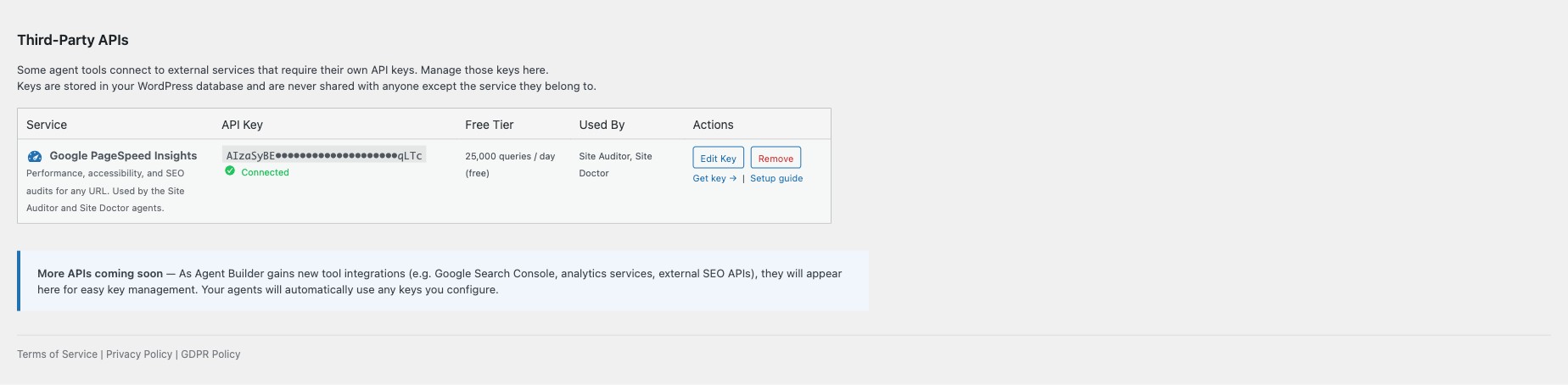
APIs
Manage third-party API keys used by specific assistant tools:
- Google PageSpeed Insights API Key — used by the SEO Assistant and Site Auditor for Core Web Vitals analysis. Optional — a shared key is used by default, but adding your own removes rate limits.
MCP
The Model Context Protocol tab lets you connect your assistants to external AI clients like Claude Desktop, VS Code, and Cursor. Requires the Agent Builder MCP companion plugin and a Personal or Agency license.
Setup
- Click Install Agent Builder MCP to install the companion plugin (or install manually).
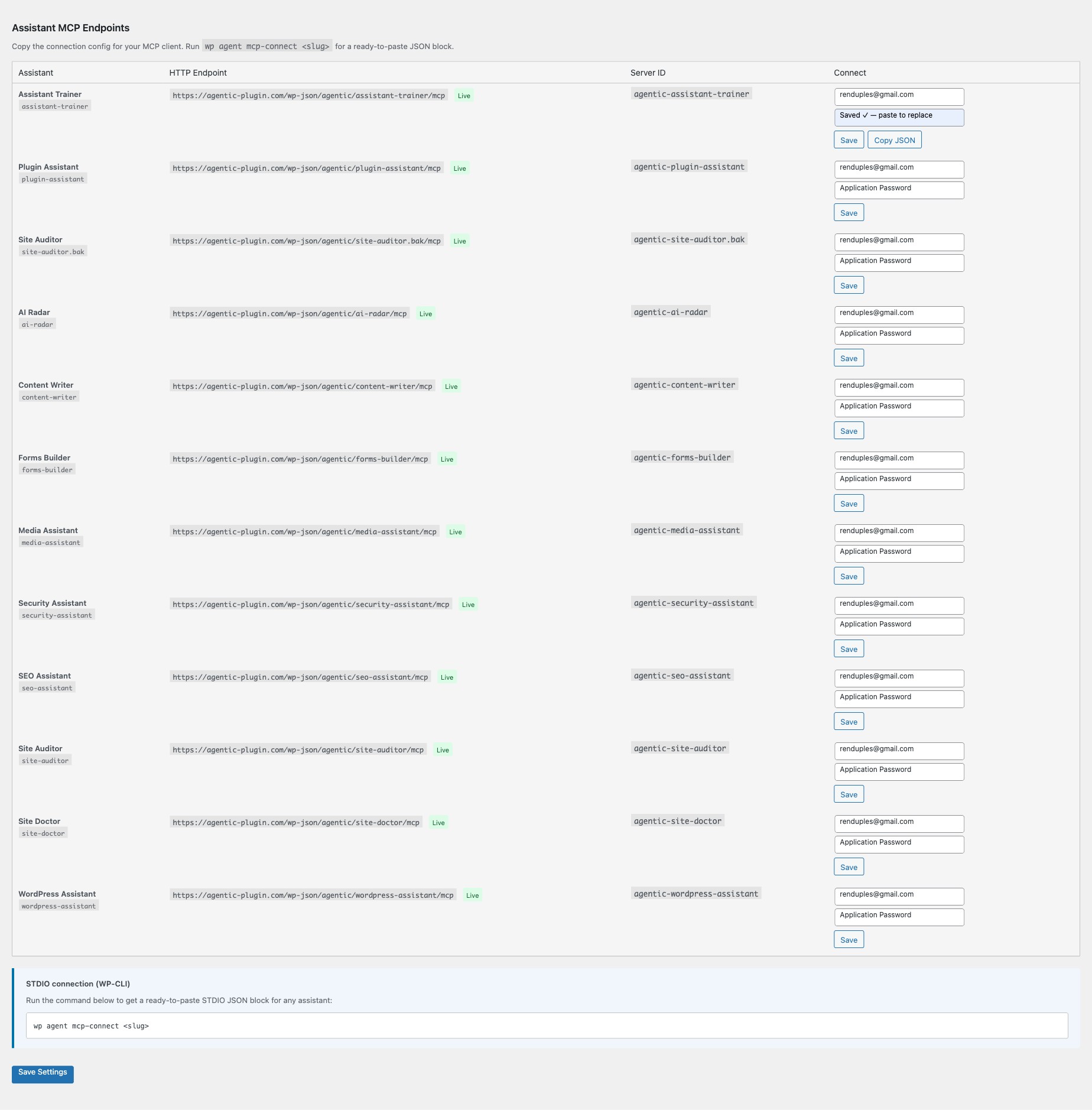
- For each assistant you want to connect, enter a WordPress username and Application Password in the Connect column.
- Click Save to store the credentials, then Copy JSON to get a ready-to-paste MCP configuration block.
- Paste the JSON into your MCP client's configuration file (e.g.
claude_desktop_config.json).

Assistant MCP Endpoints
Each assistant gets its own HTTP endpoint and server ID. You can also generate STDIO connection configs via WP-CLI: wp agent mcp-connect <slug>.
Health
A live dashboard showing the status of your license, credit balance, integrations, and all Agentic cloud services. Checks run automatically when the page loads.
Credits & License
- License card — shows your license status, type, key (masked), expiry date, and last validation time.
- Credit Balance card — shows your shared prepaid credit wallet. Credits power four services: Agentic AI chat, Vector Store & RAG, Image Generation, and Text-to-Speech. A warning appears when your balance drops below 500 credits.
Integrations
- MCP Adapter — shows whether the MCP companion plugin is active, with a link to set it up.
- WhatsApp Channel — shows whether the WhatsApp integration is connected, with a link to configure it.

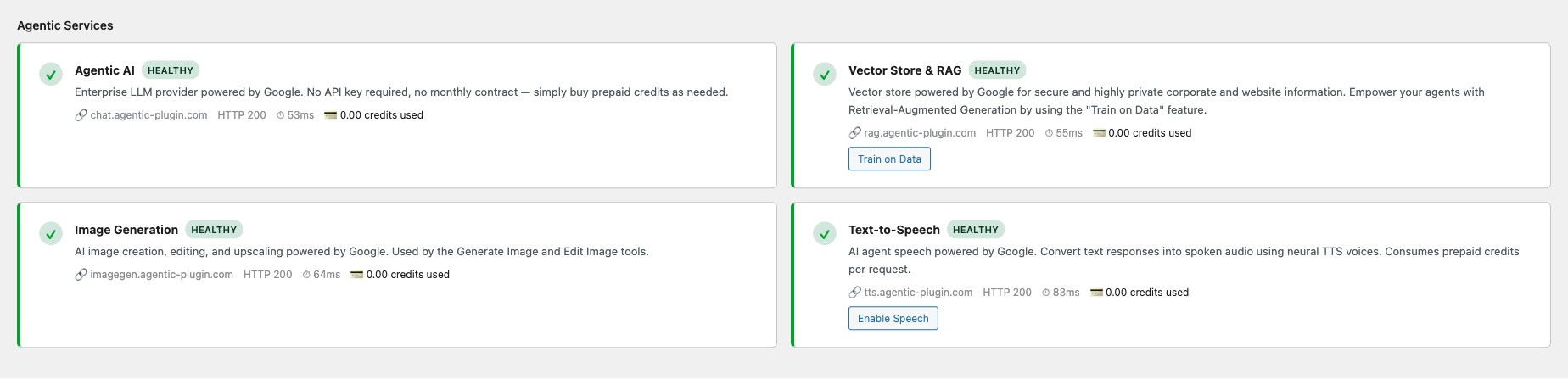
Agentic Services
Status cards for each cloud service with live health checks:
- Agentic AI — the built-in LLM provider (Google Gemini). Shows HTTP status, latency, and credits used.
- Vector Store & RAG — document embedding and semantic search.
- Image Generation — Imagen 4 text-to-image, editing, and upscaling.
- Text-to-Speech — Google Cloud TTS neural voices.
License
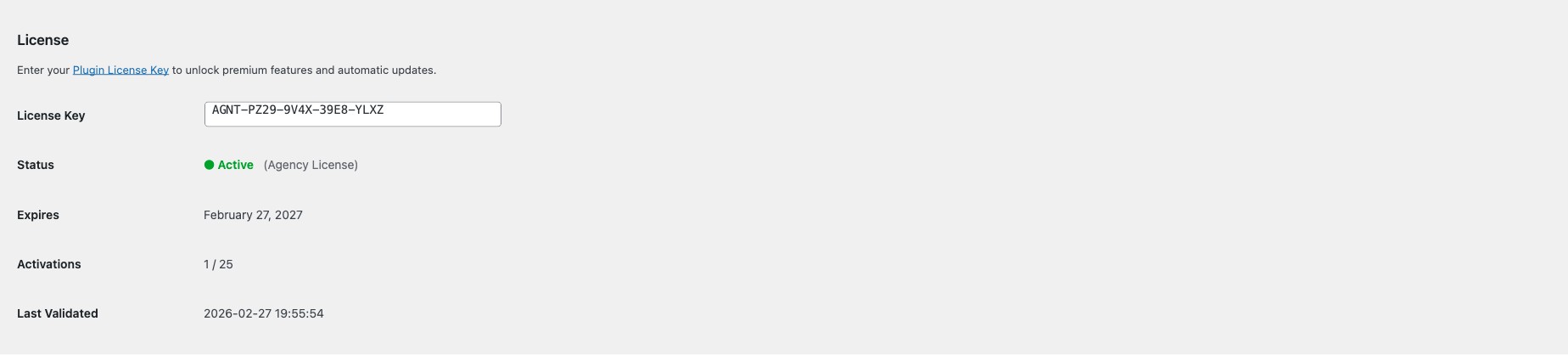
Enter your license key (format: AGNT-XXXX-XXXX-XXXX-XXXX). After saving, the plugin contacts the licensing server and shows:
- Status — Active (green), Grace Period (yellow), Expired/Revoked (red), or Free.
- Type — Personal or Agency.
- Expiry date and Activations used / limit.
- Last validated — timestamp of the most recent license check.
A license unlocks: AI Marketplace access, WhatsApp channels, Vector Store & RAG training, MCP integration, white-label branding, automatic updates, and priority support.

Use the Deactivate button to free up an activation slot before moving the plugin to a different site. Purchase or renew at agentic-plugin.com/pricing.