
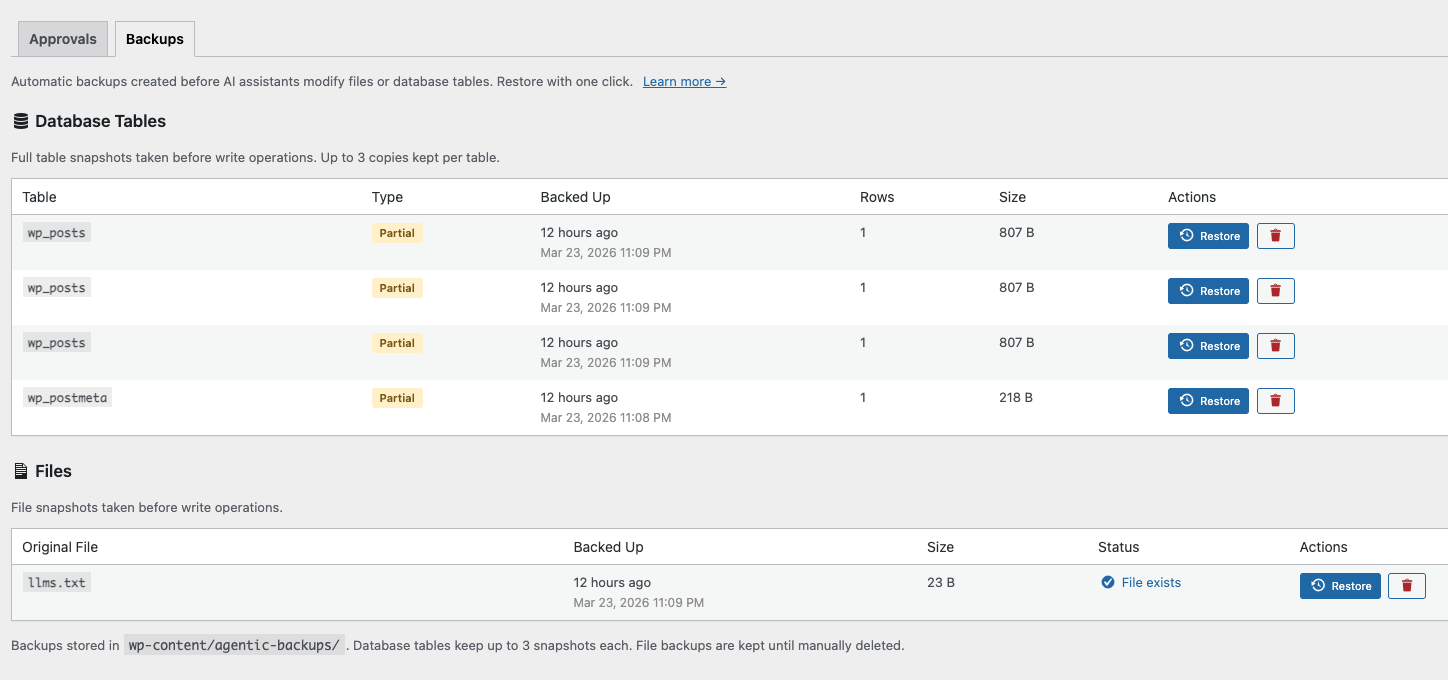
Every time an AI assistant modifies a file or database table on your site, Agent Builder automatically saves a snapshot of the original before the change is made. If something doesn’t look right, you can restore it in one click.
No configuration needed. Backups happen silently in the background — you’ll only notice them when you need them.
Where to Find Backups
Navigate to Agentic → Approval Queue and click the Backups tab. You’ll see two sections: Database Tables and Files.
Database Tables
When an assistant creates a post, updates SEO metadata, changes a WordPress option, or modifies any database content, the affected table is backed up automatically. Agent Builder keeps up to 3 snapshots per table — the oldest is removed automatically when a new one is created.
Each backup shows the table name, type (Full or Partial), when it was taken, number of rows, and file size.
Files
When an assistant modifies a file on your site — such as robots.txt or llms.txt — the original is saved before any changes are written. Each backup shows the original file path, when it was taken, file size, and whether the original file still exists.
Restoring a Backup
Click the Restore button next to any backup. You’ll be asked to confirm, and then the original is put back exactly as it was.
Before restoring, Agent Builder saves the current version too — so if you change your mind, you can undo the undo.
For database tables, a Full backup replaces the entire table. A Partial backup only replaces the specific rows that were originally changed, leaving everything else untouched.
Deleting a Backup
Click the trash icon next to any backup to remove it permanently. This only deletes the backup file — it does not affect your live site or database.
How It Works
- File backups are stored in
wp-content/agentic-backups/ - Database backups are stored in
wp-content/agentic-backups/db/ - Small tables are saved as complete snapshots; large tables use row-level targeting — only the rows about to change are saved
- A 60-second cooldown prevents duplicate backups when an assistant uses multiple tools in quick succession
- All backup and restore actions are recorded in the Audit Log
What Gets Backed Up
| What the assistant does | What gets backed up |
|---|---|
| Creates or edits a post | Posts and post metadata tables |
| Updates SEO fields | Posts and post metadata tables |
| Changes a WordPress option | Options table |
| Manages categories or tags | Terms and taxonomy tables |
| Updates robots.txt | The original robots.txt file |
| Generates llms.txt | The original llms.txt file |
| Creates or overwrites an assistant | All existing assistant files |
Backups give you a safety net so you can let your assistants work confidently — knowing you can always go back.