WordPress MCP Plugin: Connect Claude, VS Code and Cursor to WordPress
 Agentic Community
Apr 3, 2026
4 min read
Agentic Community
Apr 3, 2026
4 min read
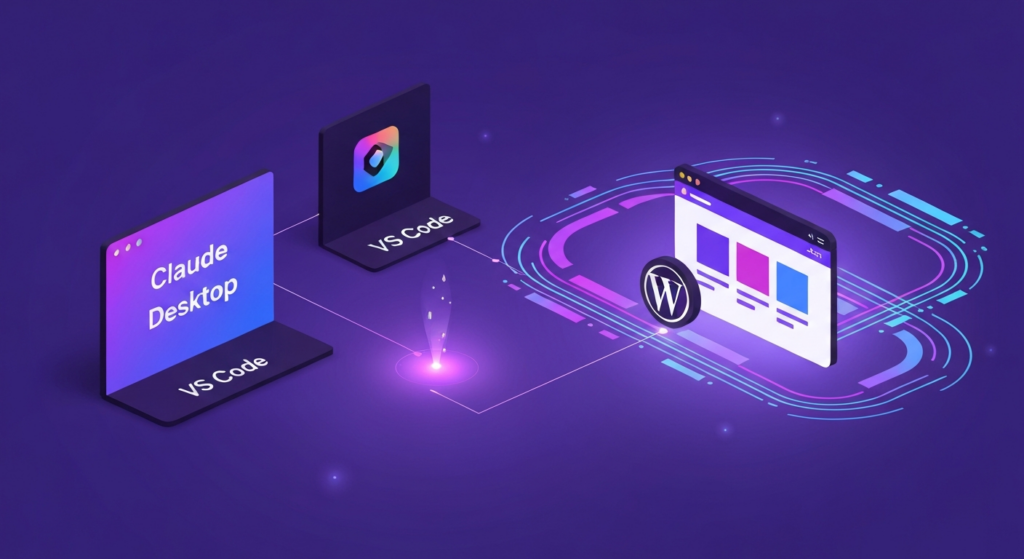
If you use Claude Desktop, VS Code, or Cursor for development, you already know how powerful AI assistants are for coding. But until recently, those tools could not talk to your WordPress site. You could ask Claude to write PHP, but it could not check which plugins you had installed, read your database, or publish a post.
MCP — the Model Context Protocol — changes that. It is an open standard that lets AI tools connect to external systems through a structured interface. And Agent Builder turns your WordPress site into an MCP server that Claude, VS Code, and Cursor can connect to directly.
The short version: install Agent Builder plus the free Agent Builder MCP companion plugin, then add your site as a connector in Claude.ai, Claude Desktop, Cursor, or VS Code. You authorize the connection with OAuth 2.0 — no tokens to copy, no passwords — and can revoke it any time from your dashboard. MCP requires a Personal or Agency license.
What Is MCP?
The Model Context Protocol is an open standard (originally developed by Anthropic) that defines how AI applications connect to data sources and tools. Think of it as a universal adapter between AI assistants and the systems they need to interact with.
Without MCP, an AI assistant is limited to what you paste into the conversation. With MCP, it can browse your WordPress content, query your database, manage your plugins, and take actions — all through a secure, structured connection.
What Agent Builder’s MCP Server Gives You
With Agent Builder plus the Agent Builder MCP companion plugin, your WordPress site becomes an OAuth-secured MCP server. Any MCP-compatible client can then connect and interact with your site. Here is what is exposed:
- Content management — read, create, update, and publish posts and pages
- Media library — browse, upload, and attach images
- Plugin management — list installed plugins, check for updates, activate or deactivate
- User management — list users, check roles and permissions
- Site configuration — read and update WordPress options
- Database queries — run read-only queries against your WordPress database
- Agent interaction — trigger and manage AI agents remotely
Every action goes through two layers: the OAuth scope you granted at the consent screen (a read-scoped token can never write), and WordPress’s own permission system (the connection can only do what the authorizing user’s role allows).
Connecting Claude Desktop to WordPress
Here is how to connect Claude Desktop to your WordPress site in under five minutes:
Step 1: Install Agent Builder
Install and activate the Agent Builder plugin on your WordPress site, then install the Agent Builder MCP companion plugin from the marketplace. MCP is a licensed feature — you need an active Personal or Agency license.
Step 2: Add Your Site as a Connector
In Claude.ai, open Settings → Connectors → Add custom connector and enter your site URL. Claude discovers your site’s OAuth endpoints automatically via the .well-known discovery document — there is no token to generate or copy. See the full MCP integration guide for details.
Step 3: Authorize the Connection
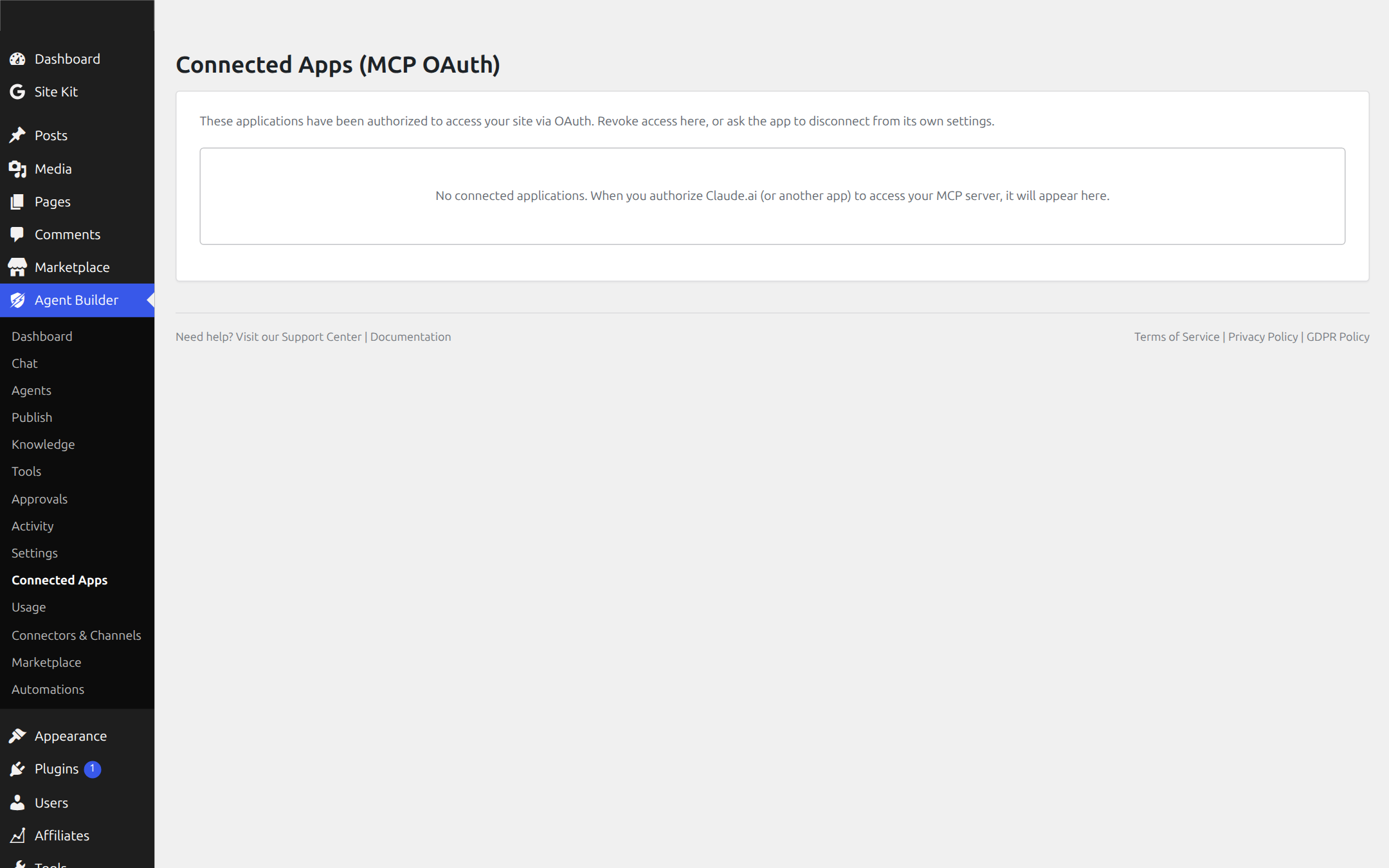
Your browser opens the authorization screen on your own site. Log in, review the requested scope, and click Authorize. You land back in Claude with the connector active and your agents’ tools available. Every authorized app appears under Agent Builder → Connected Apps in your WordPress dashboard, where you can revoke it with one click.
Step 4: Start Working
Ask Claude to “list my recent posts,” “check which plugins need updates,” or “draft a new blog post about our spring sale.” Claude will use the MCP tools to interact with your WordPress site directly — no copy-pasting, no switching tabs.
VS Code and Cursor Integration
The same MCP connection works with VS Code (via the Claude extension or Copilot with MCP support) and Cursor. Once configured, you can manage your WordPress site from your code editor:
- Query your production database while debugging a theme
- Publish a changelog post after merging a pull request
- Check plugin compatibility before pushing an update
- Upload media assets directly from your development environment
For agencies managing multiple WordPress sites, this turns your editor into a multi-site management console.
Security Considerations
Giving an AI tool access to your WordPress site sounds risky. Here is how Agent Builder handles it:
- OAuth 2.0 consent — nothing connects without a human clicking Authorize on your own site. Tokens are issued by your site, not a third party.
- Scoped access — a read-scoped token is blocked from write operations even if the authorizing user is an administrator.
- One-click revocation — cut off any connected app instantly from Agent Builder → Connected Apps; its token stops working immediately.
- Audit logging — every action taken through MCP is logged in the Agent Builder activity log, including who or what initiated it.
Why MCP Matters for WordPress
WordPress has always been about democratizing publishing. MCP democratizes AI integration. Instead of every plugin building its own proprietary AI connection, MCP provides a standard that any AI tool can use.
This means your WordPress site is not locked into one AI provider. Today you use Claude Desktop. Tomorrow you might use a different tool. The MCP connection stays the same.
MCP requires a Personal or Agency license — the free plugin covers everything else.