WordPress MCP Plugin: Connect Claude, VS Code and Cursor to WordPress
 Agentic Community
Apr 3, 2026
4 min read
Agentic Community
Apr 3, 2026
4 min read
If you use Claude Desktop, VS Code, or Cursor for development, you already know how powerful AI assistants are for coding. But until recently, those tools could not talk to your WordPress site. You could ask Claude to write PHP, but it could not check which plugins you had installed, read your database, or publish a post.
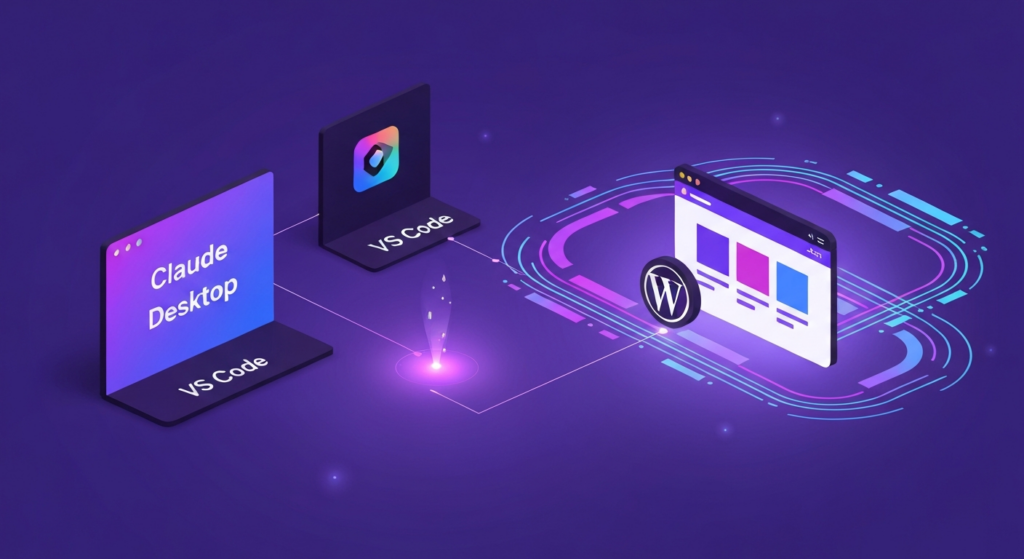
MCP — the Model Context Protocol — changes that. It is an open standard that lets AI tools connect to external systems through a structured interface. And Agent Builder turns your WordPress site into an MCP server that Claude, VS Code, and Cursor can connect to directly.
What Is MCP?
The Model Context Protocol is an open standard (originally developed by Anthropic) that defines how AI applications connect to data sources and tools. Think of it as a universal adapter between AI assistants and the systems they need to interact with.
Without MCP, an AI assistant is limited to what you paste into the conversation. With MCP, it can browse your WordPress content, query your database, manage your plugins, and take actions — all through a secure, structured connection.
What Agent Builder’s MCP Server Gives You
When you install Agent Builder, your WordPress site becomes an MCP server. This means any MCP-compatible client can connect to it and interact with your site. Here is what is exposed:
- Content management — read, create, update, and publish posts and pages
- Media library — browse, upload, and attach images
- Plugin management — list installed plugins, check for updates, activate or deactivate
- User management — list users, check roles and permissions
- Site configuration — read and update WordPress options
- Database queries — run read-only queries against your WordPress database
- Agent interaction — trigger and manage AI agents remotely
Every action goes through WordPress’s permission system. The MCP connection inherits the access level of the authenticated user — an Editor-level connection can publish posts but cannot change site settings.
Connecting Claude Desktop to WordPress
Here is how to connect Claude Desktop to your WordPress site in under five minutes:
Step 1: Install Agent Builder
Install and activate the Agent Builder plugin on your WordPress site. The MCP server is included — no additional plugins or server configuration needed.
Step 2: Generate an MCP Connection Token
In your WordPress dashboard, go to Agent Builder > Settings Settings > MCPgt; MCP. See the full MCP integration guide for detailed setup instructions. Click Generate Token. This creates a secure JWT token that authenticates the connection. Copy the token and the server URL shown on the page.
Step 3: Configure Claude Desktop
Open Claude Desktop, go to Settings > MCP Servers, and add a new server. Enter your WordPress site URL and paste the token. Claude will discover the available tools automatically.
Step 4: Start Working
Ask Claude to “list my recent posts,” “check which plugins need updates,” or “draft a new blog post about our spring sale.” Claude will use the MCP tools to interact with your WordPress site directly — no copy-pasting, no switching tabs.
VS Code and Cursor Integration
The same MCP connection works with VS Code (via the Claude extension or Copilot with MCP support) and Cursor. Once configured, you can manage your WordPress site from your code editor:
- Query your production database while debugging a theme
- Publish a changelog post after merging a pull request
- Check plugin compatibility before pushing an update
- Upload media assets directly from your development environment
For agencies managing multiple WordPress sites, this turns your editor into a multi-site management console.
Security Considerations
Giving an AI tool access to your WordPress site sounds risky. Here is how Agent Builder handles it:
- Permission inheritance — the MCP connection can only do what the WordPress user role allows. An Editor token cannot install plugins. A Subscriber token cannot edit posts.
- Token expiration — tokens can be set to expire after a defined period. Revoke any token instantly from the WordPress dashboard.
- Audit logging — every action taken through MCP is logged in the Agent Builder audit trail, including who or what initiated it.
- Read-only mode — you can generate tokens that only allow read operations, useful for monitoring and reporting without write risk.
Why MCP Matters for WordPress
WordPress has always been about democratizing publishing. MCP democratizes AI integration. Instead of every plugin building its own proprietary AI connection, MCP provides a standard that any AI tool can use.
This means your WordPress site is not locked into one AI provider. Today you use Claude Desktop. Tomorrow you might use a different tool. The MCP connection stays the same.
Download Agent Builder free and connect your WordPress site to Claude, VS Code, or Cursor today.
Ready to try AI agents in WordPress?
10 built-in assistants. No API key needed. Free forever.
Download Agent Builder Free